
Deskew, despeckle, and descreen are scanner features that automatically improve your scanned images. Deskew corrects tilted pages, making text and graphics straight and professional. Despeckle removes tiny spots or dust, enhancing clarity by eliminating noise. Descreen eliminates halftone patterns from printed images, reducing moiré effects for a more accurate copy. Understanding how these tools work helps you get cleaner, sharper scans—explore further to reveal tips for top-quality results.
Key Takeaways
- Deskew automatically detects and corrects tilted images during scanning for professional, aligned results.
- Despeckle removes dust, spots, and noise, enhancing image clarity and reducing distractions.
- Descreen eliminates halftone patterns and moiré effects from printed images to restore original quality.
- These features improve readability, reduce post-processing, and ensure high-quality digital copies.
- Each function uses advanced algorithms to optimize scan accuracy and image refinement automatically.

IRIScan Desk 6-Document Scanner,Auto-Flatten & Deskew Tech, 12MP Camera, Capture Letter Size (8,5x11in),Text to Speech 138 Languages OCR,PDF/Searchable PDF/Word/Tiff/Excel,Windows & MacOS,Silver Grey
Ideal for use in home, office or while traveling: truly portable design USB powered Digitize any documents and…
As an affiliate, we earn on qualifying purchases.
As an affiliate, we earn on qualifying purchases.
What Do Deskew, Despeckle, and Descreen Do in Scanner Image Correction?

When scanning images, you may notice that the final result isn’t perfectly straight, clean, or clear. That’s where features like deskew, despeckle, and descreen come into play. Deskew helps with image enhancement by automatically straightening tilted scans, ensuring your images are properly aligned. Despeckle removes tiny specks or dust particles that can appear during the scanning process, improving clarity. Descreen reduces moiré patterns caused by halftone screens in printed materials, making images sharper and more accurate. These functions work together during scan calibration to optimize the quality of your digital images. By applying these features, you get cleaner, more professional-looking results without needing extensive post-processing. Understanding the role of digital content formats can further enhance your scanning and image management strategies. Additionally, being aware of image correction techniques can help you select the best settings for various types of documents and images.

ScanSnap iX2500 Wireless or USB High-Speed Cloud Enabled Document, Photo & Receipt Scanner with Large 5" Touchscreen and 100 Page Auto Document Feeder for Mac or PC, Black
OUR MOST ADVANCED SCANSNAP. Large touchscreen, fast 45ppm double-sided scanning, 100-sheet document feeder, Wi-Fi and USB connectivity, automatic…
As an affiliate, we earn on qualifying purchases.
As an affiliate, we earn on qualifying purchases.
How Does Deskew Fix Skewed or Slanted Images During Scanning?
Deskew automatically detects when an image is tilted or slanted and corrects its alignment during scanning. It uses skew detection algorithms to analyze the scanned image and identify the angle of tilt. Once the skew is detected, the scanner applies angle correction to straighten the image, ensuring that text and graphics are properly aligned. This process happens seamlessly as part of the scanning operation, saving you time and effort in post-processing. By accurately identifying the degree of skew, the scanner adjusts the image orientation, resulting in a clean, professional-looking scan. High refresh rates are essential for maintaining image clarity during fast scanning movements, ensuring precise correction of skewed images. Skew detection is crucial for documents with text or lines that need to be perfectly aligned, making your digital copies easier to read and process.

Epson Workforce ES-400 II Color Duplex Desktop Document Scanner for PC and Mac with Auto Doc Feeder (ADF), Image Adjustment Tools
FAST DOCUMENT SCANNING – Speed through stacks with the 50-sheet Auto Document Feeder, perfect for office scanning and…
As an affiliate, we earn on qualifying purchases.
As an affiliate, we earn on qualifying purchases.
How Does Despeckle Remove Noise and Spots From Your Scans?

Have you ever noticed tiny spots or specks appearing on your scanned images? That’s where despeckle features come in. They perform scan noise reduction by intelligently detecting and removing small imperfections, such as dust, scratches, or debris, that cause unwanted spots. Using advanced algorithms, despeckle analyzes pixel patterns to distinguish between actual image details and noise. It then smooths or eliminates these tiny specks, resulting in cleaner, clearer scans. This process is vital for improving the overall quality of your digital images, especially when working with aged documents or photos. By effectively performing image spot removal, despeckle helps you achieve professional-looking results without the distraction of unwanted noise or blemishes, making your scans sharper and more accurate. Additionally, understanding filtering techniques can further enhance your ability to maintain image clarity and quality during the scanning process. For example, applying noise reduction algorithms can optimize the effectiveness of despeckle features and improve your final image quality. Incorporating image enhancement strategies can also help preserve important details while reducing noise, and utilizing adaptive filtering can further refine the removal of artifacts without sacrificing image sharpness. Exploring noise pattern recognition can also aid in distinguishing between genuine details and noise, allowing for more precise despeckling.
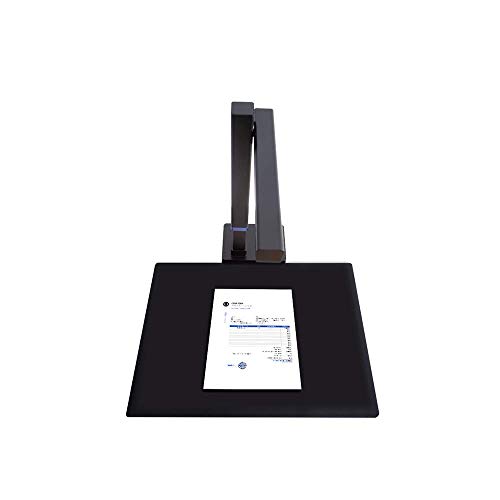
CZUR Shine800-A3-Pro Professional Height Adjustable USB Document Camera, A3&A4 Document Scanner with OCR Function for MacOS and Windows
Design & Speed: Work with Windows XP/7/8/10/11 AND macOS 10.13 or later. Designed for A3&A4(11.69*16.53 & 8.27*11.75 inch)…
As an affiliate, we earn on qualifying purchases.
As an affiliate, we earn on qualifying purchases.
Why Is Descreen Important for Restoring Printed or Screened Images?
Descreening plays a crucial role in restoring printed or screened images by removing the pattern of dots or lines used during printing or halftoning. Without descreening, these screening patterns can create moiré effects and reduce printed image accuracy, making the scanned image look unnatural or distorted. By effectively removing the screening pattern, your scan becomes clearer, more true to the original, and easier to edit or reproduce. Descreening ensures that the fine details of the image are preserved without interference from halftone dots or line screens. This process improves overall image quality, especially when preparing scanned images for digital use or printing. In short, descreening is essential for achieving a clean, accurate digital representation of printed or screened images.
Tips for Using Deskew, Despeckle, and Descreen to Get High-Quality Scans
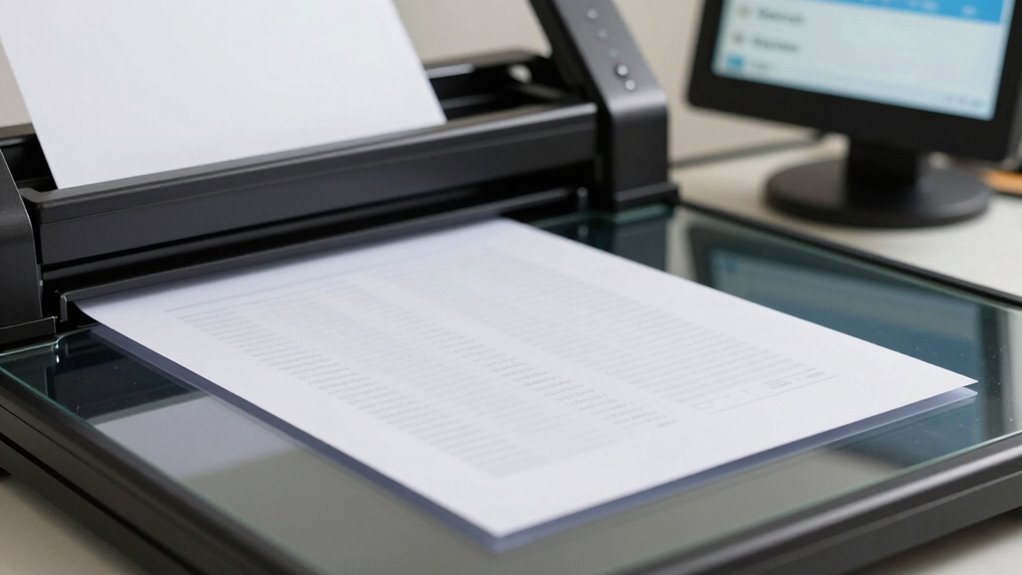
To achieve high-quality scans, utilizing tools like deskew, despeckle, and descreen is essential. These features improve digital archiving by ensuring sharp, clear images. Here are tips to maximize their effectiveness:
Maximize scan quality by using deskew, despeckle, and descreen for clearer, sharper digital archives.
- Always perform a deskew correction first to align skewed pages, which enhances overall image clarity.
- Use despeckle carefully to remove dust and spots without losing important details, aiding accurate color calibration.
- Apply descreen to reduce moiré patterns, especially when scanning printed materials.
- Regularly review and adjust scanner settings to optimize these features for different document types and paper qualities, ensuring consistent high-quality results.
Implementing these tips helps produce cleaner scans, simplifies editing, and preserves details for long-term digital archiving.
Frequently Asked Questions
Can Deskew, Despeckle, and Descreen Be Used Together Simultaneously?
Yes, you can use deskew, despeckle, and descreen simultaneously through image processing software integration. Many scanning programs offer these features as part of their automatic enhancement tools, allowing you to optimize scanned images in one workflow. Combining them helps improve overall image quality by straightening skewed pages, removing specks, and reducing screen patterns, ensuring clearer, more professional results without needing separate steps or manual adjustments.
Do These Features Affect the Resolution or Quality of the Original Image?
Using deskew, despeckle, and descreen features can slightly impact your image resolution and scanning accuracy. These functions optimize the scanned image by correcting skew, reducing noise, and removing screen patterns, which may sometimes soften the details. However, they generally improve overall quality, making the image clearer and more precise. While they might alter fine details slightly, the benefits often outweigh the minor resolution changes, enhancing your final output.
Are There Specific Scanner Models That Excel in These Correction Features?
Think of professional scanner models as skilled artisans, expertly wielding advanced correction features like Deskew, Despeckle, and Descreen to restore clarity and precision. These models excel in delivering top-tier performance, ensuring your images are sharp and true to life. If you seek excellence, look for scanners renowned for their advanced correction features—these are the craftsmen who transform imperfect scans into flawless masterpieces, elevating your work to new heights.
How Do These Features Impact Scanning Speed and Workflow Efficiency?
These features can slow down your scanning speed slightly because they require extra processing time, but they substantially improve workflow automation by producing cleaner, more accurate images. By reducing manual corrections, you save time in post-processing, which enhances overall efficiency. High-quality scanners with advanced correction capabilities strike a good balance, ensuring you don’t sacrifice too much processing speed while maintaining ideal scan quality and streamlining your workflow.
Can I Customize the Strength or Sensitivity of Deskew, Despeckle, and Descreen?
Think of your scanner settings like tuning a musical instrument. You can customize the strength or sensitivity of deskew, despeckle, and descreen through software customization options, aligning with your user preferences. This way, you control how much correction occurs, ensuring best image quality without overprocessing. Adjusting these features allows you to find the perfect balance, making your scanning workflow more efficient and tailored to your specific needs.
Conclusion
Think of deskew, despeckle, and descreen as your scanner’s secret weapons—the magic brushes that turn blurry, noisy images into crisp, professional-looking masterpieces. When you harness these features, it’s like giving your scans a fresh coat of clarity and polish. So, don’t be afraid to tinker and fine-tune your settings. With a little patience, you’ll transform every scan into a shining gem, ready to dazzle everyone who sees it.