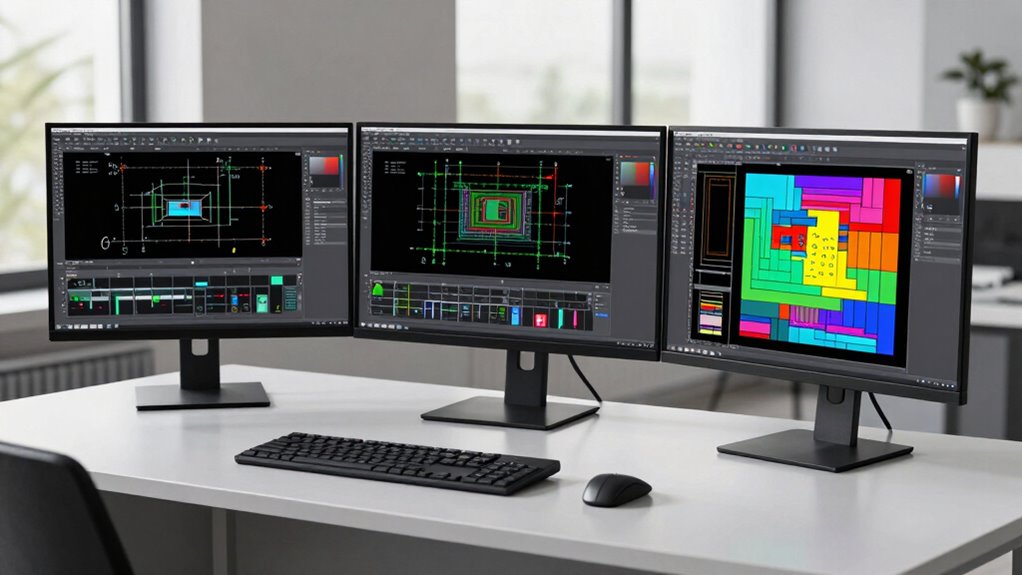

Using a multi-monitor setup boosts your CAD and layout productivity by making it easier to manage multiple design elements and compare different components side by side. It helps you stay organized, minimizes switching between tabs, and speeds up your workflow. Enhanced ergonomic positioning reduces eye strain and fatigue, letting you work longer comfortably. With better focus and efficient navigation, you’ll see faster project completion. Keep exploring to discover how to optimize your setup even further.

Get business pricing on monitors, keyboards and dev gear
- Business-only prices and quantity discounts
- Tax-exempt purchasing
- Multiple users, one account, clear invoices
Key Takeaways
- Enables simultaneous viewing of reference images, CAD models, and design tools, reducing switching time and increasing efficiency.
- Facilitates side-by-side comparison of different design iterations, improving accuracy and decision-making.
- Improves workspace organization, minimizing clutter and streamlining navigation within complex projects.
- Supports ergonomic positioning, reducing fatigue and enhancing focus during long design sessions.
- Allows multitasking, such as collaboration and background referencing, without disrupting workflow.
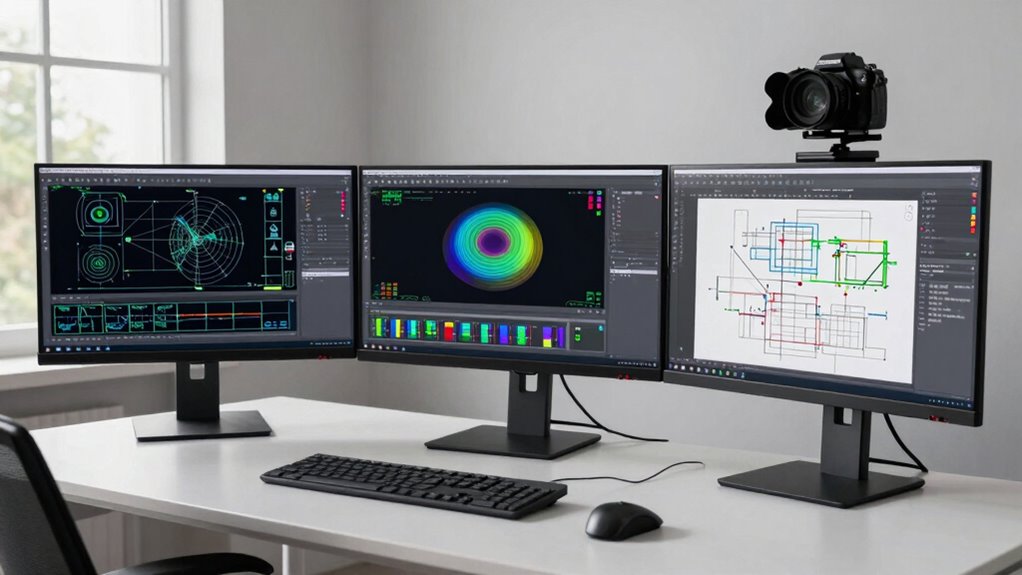
As CAD and layout tasks become more complex, a multi-monitor setup can considerably boost your productivity. You’ll find it easier to manage multiple windows, compare different design elements side by side, and switch between tools without losing your flow. This setup minimizes the need to constantly toggle between tabs or resize windows, allowing you to focus more on the design itself rather than your workspace. The ergonomic benefits are significant too; with multiple screens, you can position monitors at eye level, reducing neck strain and promoting better posture during long work sessions. Proper ergonomic alignment helps prevent fatigue and discomfort, which can otherwise slow you down or lead to health issues over time. When considering a multi-monitor setup, hardware compatibility is vital. Not all computers or graphics cards support multiple displays seamlessly, so you need to guarantee your system can handle the additional monitors. Check the specifications of your hardware—most modern graphics cards support dual or even triple monitors, but older models might require upgrades or adapters. Compatibility extends beyond just hardware; the connectors, such as HDMI, DisplayPort, or DVI, should match your monitors and graphics card outputs. Once everything is compatible, setting up multiple screens becomes straightforward, and you’ll immediately notice the efficiency gains. Additionally, understanding hardware compatibility can help you avoid costly upgrades or connection issues. Using multiple monitors transforms your workflow by enabling you to dedicate screens for specific tasks. For example, you might keep your CAD workspace on one monitor, reference images or background plans on another, and tool palettes or property managers on a third. This separation reduces clutter and makes navigating complex projects much easier. You’ll spend less time searching for tools or switching between windows, which accelerates your design process. Additionally, this setup enhances your ability to multitask—reviewing revisions, comparing versions, or collaborating with team members—all without disrupting your primary workflow. Incorporating ergonomic principles into your setup can further enhance comfort and productivity over long periods. Moreover, paying attention to visual ergonomics can help reduce eye strain during extended work sessions, ensuring sustained focus and comfort.
Products Worth Considering

LG UltraGear 32GX850A-B 32-inch 4K UHD Glossy OLED Gaming Monitor

LG UltraGear 34GX90SA-W 34-inch WQHD Curved OLED Gaming Monitor

Samsung Galaxy Tab A11 Wi-Fi Tablet, 8.7-Inch, 64GB, 4GB RAM, Gray (SM-X133, International Version)
As an affiliate, we earn on qualifying purchases.
Frequently Asked Questions
What Is the Ideal Monitor Size for CAD Work?
For CAD work, a 24 to 32-inch monitor is ideal, providing enough screen real estate for detailed designs. Make certain your monitor has good calibration for accurate colors and measurements. An ergonomic design helps reduce strain during long sessions. Larger monitors enhance productivity by allowing you to view more of your layout at once, but confirm your setup supports proper calibration and ergonomic comfort for peak performance.
How Do Multi-Monitor Setups Affect System Performance?
Multi-monitor setups can impact system performance by straining hardware compatibility and graphics performance. You might notice slower rendering or lag if your GPU isn’t powerful enough to handle multiple high-resolution screens. To guarantee smooth operation, upgrade your graphics card and check that your hardware supports multi-monitor configurations. Properly calibrated systems prevent performance drops, allowing you to work efficiently across several monitors without compromising speed or visual quality.
Can Multi-Monitor Setups Improve Collaboration in Design Teams?
Yes, multi-monitor setups can considerably boost collaboration in design teams. They enhance remote collaboration by allowing team members to share more visual clarity during virtual meetings, making it easier to review complex CAD models or layouts. With multiple screens, you can display different project aspects simultaneously, facilitating real-time feedback and brainstorming. This setup encourages seamless communication, improves understanding, and accelerates decision-making across your design team.
What Are the Common Challenges With Multi-Monitor Configurations?
You might face challenges like maintaining ergonomic comfort and visual ergonomics, as multiple monitors can cause neck strain or eye fatigue if not set up properly. Managing screen real estate becomes tricky, and inconsistent display settings can hinder workflow. Ensuring proper monitor alignment, adjustable stands, and appropriate lighting helps mitigate these issues. Without careful setup, multi-monitor configurations may lead to discomfort and decreased productivity over time.
How to Optimize Desk Space for Multiple Monitors?
Did you know that a clutter-free desk increases productivity by up to 20%? To optimize your desk space for multiple monitors, focus on ergonomic positioning to reduce strain, placing screens at eye level. Use cable management tools like clips or sleeves to keep cords tidy and prevent clutter. This setup not only maximizes your workspace but also enhances comfort, making your multitasking more efficient and enjoyable.
Conclusion
With a multi-monitor setup, you gain more than just extra screen space—you unleash the potential for unprecedented efficiency and creativity. Imagine the possibilities as your workflow becomes smoother, more intuitive, and faster than ever before. But the true game-changer is lurking just beyond the horizon. Are you ready to discover how this simple upgrade could revolutionize your CAD and layout productivity—and perhaps, change the way you work forever? The future awaits.