If your CAD linework looks fuzzy, start by checking your display and graphics settings—ensure your monitor resolution and refresh rate are correct, and update your graphics card drivers. Then, verify your plot and print resolution to at least 300 dpi for crisp output. Adjust lineweight and line types for clarity, use proper zoom and viewport settings to see details sharply, clear cache to remove display errors, and update your software if needed. Keep these tips in mind as you explore solutions further.
Key Takeaways
- Check monitor resolution and display calibration to ensure sharpness and accurate line rendering.
- Verify plot resolution is set to at least 300 dpi for clear output quality.
- Adjust lineweight and line type settings in layer properties for better visibility.
- Optimize zoom level and viewport scale to accurately display fine linework.
- Clear software cache and rebuild visuals to remove outdated rendering artifacts.

Datacolor SpyderExpress Monitor Calibrator & Screen Color Calibrator
- Quick & Easy Color Calibration: Precise color for photos and content creation
- Supports Latest Displays: Compatible with MacBook M4 mini-LED and more
- Fast Setup: Calibrates in just 90 seconds for quick results
As an affiliate, we earn on qualifying purchases.
As an affiliate, we earn on qualifying purchases.
Understand Why Your CAD Linework Appears Fuzzy
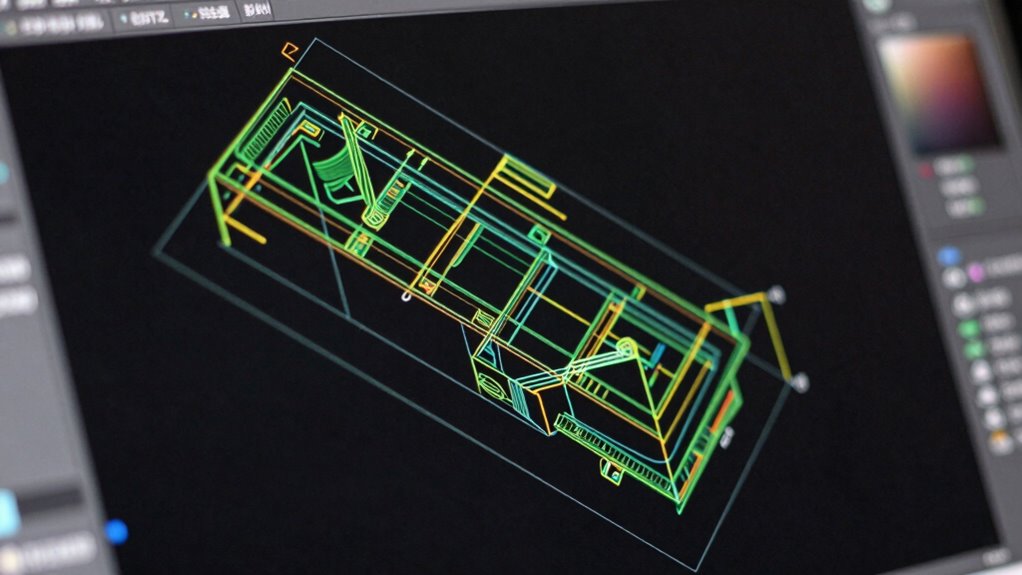
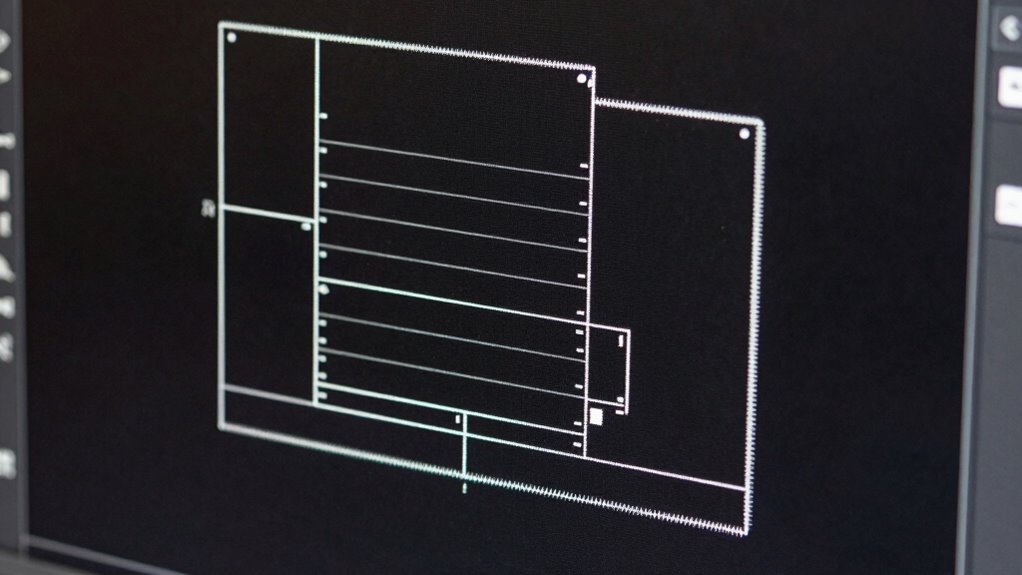
When your CAD linework appears fuzzy, it often results from display settings or rendering issues rather than the actual design. To improve linework clarity, start by ensuring your display calibration is accurate. Poor calibration can cause lines to appear blurry or distorted, making your drawings hard to interpret. Check your monitor’s resolution and color settings, as these directly impact how sharp your CAD lines look. Also, verify that your graphics card drivers are up to date, since outdated drivers can affect rendering quality. Remember, fuzzy linework isn’t usually a problem with your CAD file itself but with how it’s displayed. By fine-tuning your display calibration and understanding how it influences linework clarity, you’ll see a significant improvement in your CAD visuals. Additionally, adjusting your rendering settings can help enhance line sharpness and overall image clarity. Ensuring your graphics card is capable of handling high-resolution displays can also make a notable difference in visual quality, especially when combined with proper display calibration. Moreover, understanding how creative storytelling can be applied to technical documentation can improve user engagement and comprehension of your CAD designs.

ASUS Dual NVIDIA GeForce RTX 3050 6GB GDDR6 OC Edition Gaming Graphics Card – PCIe 4.0, HDMI 2.1, DisplayPort 1.4a, 2-Slot Design, Axial-tech Fan Design, Steel Bracket, 3 Year Warranty
- NVIDIA Ampere Streaming Multiprocessors: Twice the FP32 throughput, improved efficiency
- 2nd Gen RT Cores: Enhanced ray-tracing with double throughput
- 3rd Gen Tensor Cores: Up to 2x AI and game performance boost
As an affiliate, we earn on qualifying purchases.
As an affiliate, we earn on qualifying purchases.
Check and Adjust Your Display and Graphics Settings
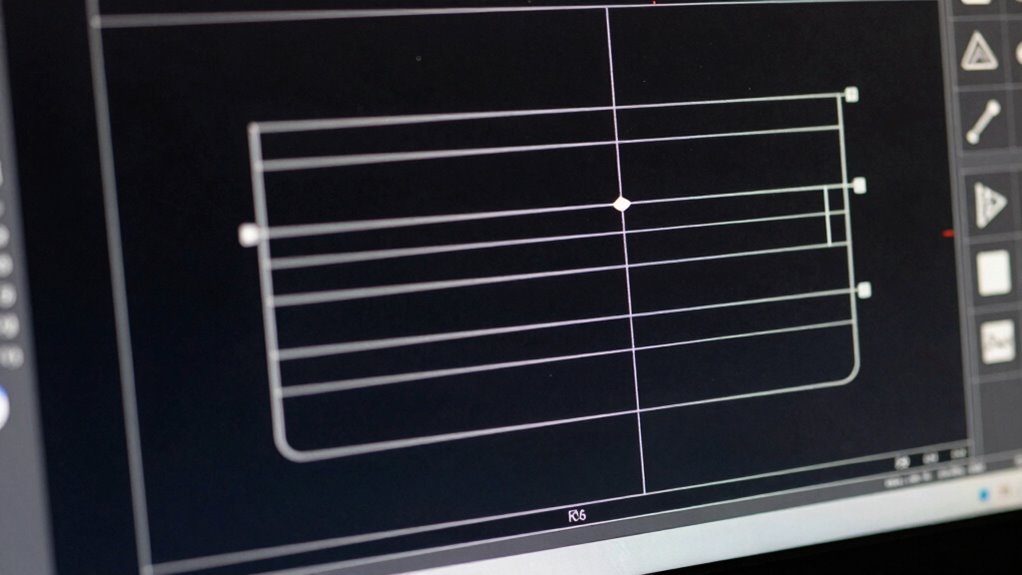
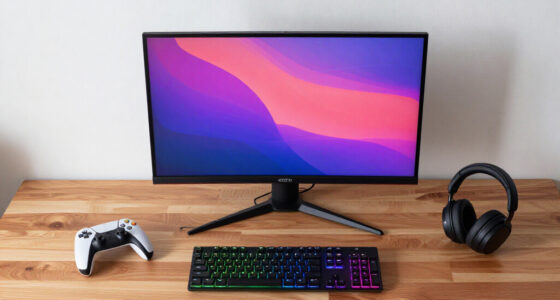
Fuzzy linework often stems from display or graphics settings that need adjustment. To improve clarity, start by checking your monitor display settings for proper resolution and refresh rate. Next, verify your graphics card drivers are up to date, as outdated drivers can cause rendering issues. Finally, adjust the graphics card settings to optimize line smoothing and anti-aliasing features, which directly affect line sharpness. Remember: antialiasing settings can significantly impact line clarity and should be fine-tuned accordingly. Additionally, ensuring your graphics hardware supports GPU acceleration can enhance rendering performance. Keeping your graphics drivers updated is crucial because it helps maintain compatibility with the latest CAD software features and prevents rendering artifacts. Regularly reviewing your graphics configuration can prevent visual distortions and improve overall display quality. These steps help ensure your display and graphics card work harmoniously, reducing fuzziness and sharpening your CAD linework for better precision. Moreover, understanding and managing display calibration can further improve visual accuracy, leading to more precise design work.

SAMSUNG 32" ViewFinity S8 (S80D) Series 4K UHD High Resolution Computer Monitor, HDR10, Multiple Ports w/ HDMI, DisplayPort, USB-A, Height Adjustable Stand, LS32D806EANXGO, 2024, 3Yr Warranty
- 4K UHD Resolution: 3840×2160 pixel clarity for detailed visuals
- Easy Setup Stand: Tool-free, quick assembly and adjustments
- HDR10 Support: Vivid, true-to-life color and contrast
As an affiliate, we earn on qualifying purchases.
As an affiliate, we earn on qualifying purchases.
Verify and Set Proper Plot/Print Settings for Clarity

To improve print clarity, you need to verify your plot style settings and make sure they are correctly configured. Adjust the plot resolution and confirm the scale to avoid blurry or distorted linework. Taking these steps helps produce sharp, precise printed drawings. Additionally, reviewing your gear maintenance routines can help ensure your printing equipment is functioning optimally for the best results. Regularly inspecting your hardware components can prevent issues that compromise print quality. Ensuring your plot style management is accurate can also significantly enhance the clarity of your output. Moreover, employing color calibration techniques can further improve the fidelity of your printed lines and details. Furthermore, utilizing measurement tools to calibrate your equipment can lead to more consistent and accurate prints.
Check Plot Style Settings
Have you checked your plot style settings lately? Ensuring the correct plot style can markedly improve line clarity. First, verify that you’re using the appropriate plot style table for your project. Second, review your current plot style to see if lineweight adjustment is needed—thicker lines can reduce fuzziness. Third, confirm that the plot style settings are consistent across all layers to prevent inconsistent line appearances. Adjusting the plot style and lineweight settings helps produce clearer, sharper linework. Remember, improper plot styles can cause lines to look fuzzy or thin, so always double-check these settings before printing or plotting your drawings. Properly configured plot styles ensure your CAD linework remains crisp and professional.
Adjust Plot Resolution
Are your plot resolution and print settings optimized for clarity? If your linework appears fuzzy, adjusting the plot resolution can make a big difference. Make certain you’re setting a high enough resolution in your printing options—aim for at least 300 dpi for sharp print clarity. Check your plot device’s settings and verify that the resolution isn’t set too low, which can cause jagged lines and blurriness. When you increase the plot resolution, it enhances detail and sharpness, making your drawings clearer. Also, confirm that your scale and paper size match your intended output. Properly configuring your plot resolution ensures your final print maintains the crispness of your CAD linework, avoiding the fuzzy appearance that often results from low-quality print settings. Additionally, understanding the importance of print quality can help you troubleshoot and prevent these issues in the future, especially when considering how AI-powered tools can assist in optimizing printing and design workflows. Ensuring your resolution settings align with your project’s needs is crucial for achieving professional results.
Confirm Plot Scale
Ensuring your plot scale is correct is essential for achieving clear and accurate linework. If the scale isn’t right, your drawing proportions can appear off, and linework may look fuzzy or distorted. To verify your plot scale:
- Check the drawing’s current scale setting against the intended scale.
- Ensure the plot settings match the drawing’s scale for consistency.
- Confirm that the paper size and plot area are correctly configured.
- Remember that engine modifications like flywheels and engine upgrades can affect overall vehicle performance, so accurate planning and scaling are vital when designing or inspecting parts.
Maintaining scale accuracy helps preserve drawing proportions and ensures your linework prints sharply. Always double-check these settings before printing, so your linework remains crisp and true to the original design. Proper plot scale management prevents fuzzy lines caused by mismatched or incorrect settings.
![MixPad Multitrack Recording Software for Sound Mixing and Music Production Free [Mac Download]](https://m.media-amazon.com/images/I/51kaO82jYOL._SL500_.jpg)
MixPad Multitrack Recording Software for Sound Mixing and Music Production Free [Mac Download]
- Audio, music, and voice mixing: Mix multiple track types
- Multi-track recording: Record multiple tracks simultaneously
- Advanced editing tools: Split, trim, join, and more
As an affiliate, we earn on qualifying purchases.
As an affiliate, we earn on qualifying purchases.
Tweak Lineweight and Line Type Settings for Sharpness
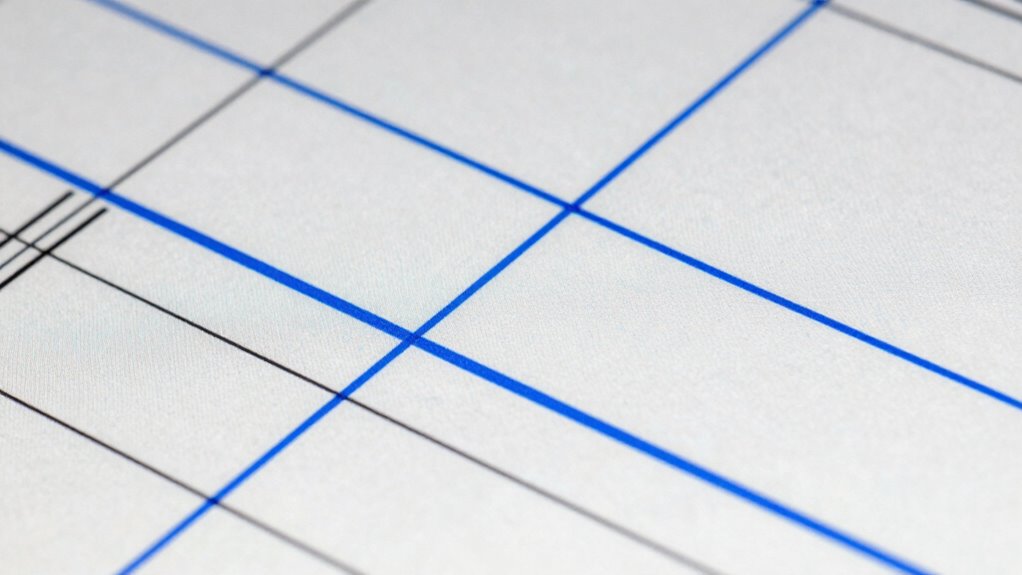
Adjusting lineweight and line type settings can markedly improve the sharpness of your CAD linework. Start with lineweight adjustment to guarantee lines are visible without overwhelming the drawing. Thinner lines can look fuzzy if they’re too light, so increase lineweights for clearer visibility. Equally important is line type customization; using solid or properly scaled dashed lines helps maintain crispness. Avoid overly complex or thin dashed patterns that can appear blurry when printed or displayed at different zoom levels. Check your lineweight and line type settings in your layer properties or style manager, and fine-tune them for peak clarity. Properly adjusted lineweight and line types ensure your drawings appear sharp and professional, reducing confusion and making details easier to interpret. Additionally, visual consistency across your drawings enhances overall clarity and presentation quality. Ensuring consistent line style helps maintain a cohesive and polished appearance throughout your project. To further enhance clarity, consider line spacing and how it interacts with your chosen line types for optimal results.
Use the Correct Viewport and Zoom Options to Enhance Detail

To improve detail, you need to adjust your viewport scale so it accurately reflects the level of detail you want. Optimizing your zoom level helps you see fine linework clearly without fuzziness. Choosing the right viewport guarantees your drawing displays at the best possible detail when printed or viewed. Additionally, maintaining a well-lit workspace can reduce eye strain and help you discern subtle line variations more easily.
Adjust Viewport Scale
Have you noticed your CAD linework appears fuzzy or lacks sharpness? Adjusting the viewport scale can rectify this by matching the drawing proportion to your display. Proper viewport scaling ensures your view reflects the correct level of detail. To do this effectively:
- Select the correct viewport to focus on your drawing.
- Use the zoom tools to set a scale that clearly displays your lines without distortion.
- Confirm the viewport scale matches your intended drawing proportion for accurate representation.
Additionally, understanding drawing measurements and how they relate to your display can help improve visual clarity.
Optimize Zoom Level
Optimizing your zoom level is essential for capturing the right level of detail in your CAD drawings. When you set an appropriate zoom level, you ensure your linework appears sharp and clear, avoiding fuzziness caused by overly close or distant views. Adjusting zoom according to your screen resolution helps maintain consistency across different displays, preventing distortion or pixelation. Use the zoom tools in your CAD software to find a balance where lines are crisp without unnecessary detail that slows performance. Keep in mind that high screen resolution can make lines appear thinner, so zooming in slightly can make details more visible. Regularly check your zoom level to ensure your drawings look precise, especially when working on intricate or detailed sections. Being aware of visual clarity and how it affects perception can significantly improve your drafting accuracy.
Choose Appropriate Viewport
Choosing the right viewport and zoom options allows you to focus on the most important details in your CAD drawings. Proper viewport settings help you see linework clearly, reducing fuzziness. To improve clarity, consider these tips:
- Use multiple viewports to isolate specific layers, making details stand out.
- Adjust zoom levels to match the detail you need, avoiding overly broad or close views.
- Select color schemes that enhance contrast between layers, improving visibility and differentiation.
Layer management is vital—organize layers so only relevant ones are visible at each viewport. Choosing appropriate zoom and viewport settings ensures your linework appears sharp and precise, minimizing fuzziness and making your drawings easier to interpret.
Clear Cache and Rebuild Visuals to Fix Display Artifacts

When display artifacts such as fuzzy or blurry lines appear in your CAD drawings, clearing the cache and rebuilding the visuals often resolve the issue. Cache clearing removes outdated temporary files that can cause display glitches, while visual rebuilding refreshes how your CAD software renders the drawings, enhancing clarity. To help you understand, here’s a quick overview:
| Step | Action | Result |
|---|---|---|
| 1 | Clear cache | Removes corrupted or outdated data |
| 2 | Rebuild visuals | Refreshes rendering to improve clarity |
| 3 | Restart CAD software | Ensures changes take effect |
| 4 | Check display settings | Confirms display updates are applied |
Performing these steps restores sharpness, ensuring your linework appears crisp and accurate.
Update or Reinstall CAD Software for Optimal Performance
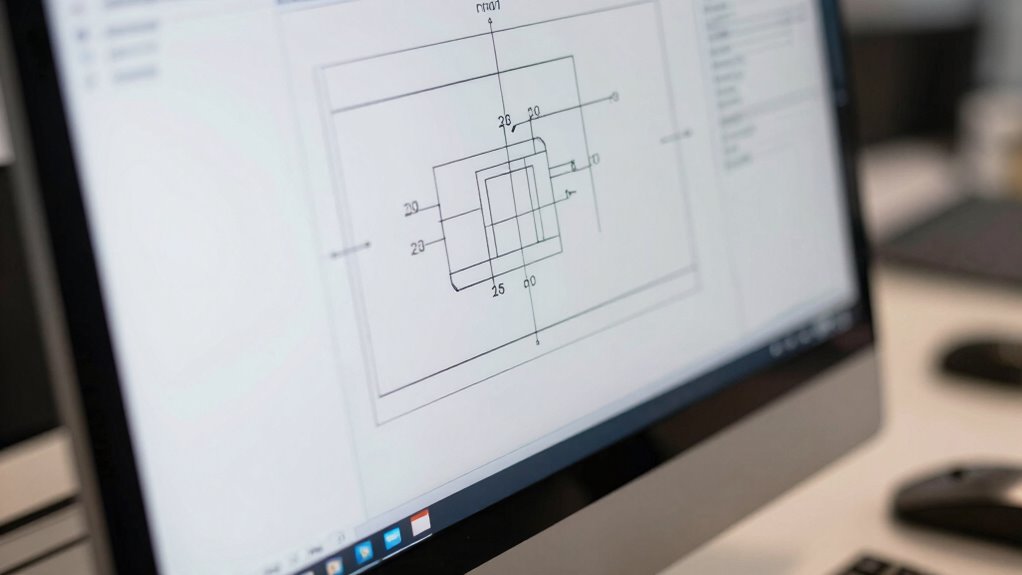
Updating or reinstalling your CAD software can substantially boost performance and resolve persistent display issues. Keeping your software updated ensures you have the latest features and bug fixes that improve visual clarity. When considering the reinstall process, follow these key steps:
Regular updates and reinstallations enhance CAD performance and sharpen visuals.
- Backup custom settings and files before starting.
- Uninstall the current version completely to avoid conflicts.
- Download and install the latest software updates from the official site.
- Regularly check for software updates to prevent future problems.
Performing these actions helps eliminate corrupted files and outdated components that cause fuzzy linework. Regular software updates can also prevent future problems. Reinstalling ensures a clean environment for your CAD tools, leading to sharper visuals and better overall performance. Stay proactive with updates and reinstallation to maintain superior display quality and workflow efficiency.
Frequently Asked Questions
How Can I Tell if My Graphics Card Is Causing Fuzziness?
You can tell if your graphics card causes fuzziness by running graphics card diagnostics and checking for artifacts or display issues. Also, verify your monitor calibration is accurate, as poor calibration can mimic fuzziness. If problems persist after calibration, run diagnostic tests on your graphics card to spot hardware issues. A clear, sharp display after these steps indicates your graphics card may not be the culprit.
What Are the Best Display Settings for Detailed CAD Work?
Think of your display settings like tuning a musical instrument—you want perfect harmony. For detailed CAD work, set your resolution to match your monitor’s native one, and enable anti-aliasing for smooth lines. Make certain your hardware is compatible and up-to-date with the latest software updates. Adjust brightness and contrast for clarity, and check your graphics card settings to optimize performance, so your work looks sharp and precise every time.
How Do I Reset CAD to Default Linework Display Settings?
To reset your CAD to default linework display settings, start by typing “OP” for options and navigate to the “Display” tab. Adjust viewport scaling to make certain your view isn’t zoomed in or out excessively, which can cause fuzziness. Manage lineweight settings by resetting them to defaults to improve clarity. This ensures your linework looks sharp and consistent, reducing fuzziness and enhancing overall detail.
Can Updating My Graphics Driver Improve Line Clarity?
Think of your graphics card as a painter’s brush—updating its driver sharpens the strokes. Yes, updating your graphics driver can substantially improve line clarity by optimizing rendering processes and fixing bugs. A driver update ensures your graphics card communicates effectively with your CAD software, reducing fuzziness and enhancing detail. So, don’t wait—install the latest driver update to bring crisp, clean linework to your designs.
What File Formats Retain the Best Quality for Printing CAD Drawings?
For printing CAD drawings, you want file formats that minimize compression to retain quality, like PDF or TIFF. These formats preserve detail and avoid quality loss caused by file compression. Also, guarantee you’re embedding accurate color profiles to maintain color fidelity. Using high-resolution settings and lossless formats helps keep your linework sharp, clear, and print-ready, preventing fuzziness or blurriness in your printed drawings.
Conclusion
Think of your CAD workspace as a clear window—when settings are right, everything shines sharply through. By tuning these seven settings, you’re polishing that window until your linework becomes crisp and true. Don’t let fuzzy lines cloud your vision; instead, focus on these adjustments to reveal a crystal-clear view of your design. Remember, a well-calibrated CAD environment is the lens that brings your creative ideas into sharp, vivid focus.