
To fix a jammed printer quickly, first turn off the machine and open all access panels. Gently remove any stuck paper, being careful not to tear it, and clear out debris or dust in the paper path. Check that the paper is loaded properly and not wrinkled, then close panels securely. If the jam persists, inspecting the toner cartridge or performing a reset may help. Keep going to discover more effective tips to keep your printer running smoothly.
Key Takeaways
- Turn off the printer before opening access panels to safely remove jammed paper.
- Gently pull out stuck paper, using tweezers if needed, to prevent tearing.
- Check for and remove any debris or small paper bits blocking the paper path.
- Ensure paper is correctly loaded, unfolded, and not overfilled in the tray.
- Close all panels securely, then run a test print to confirm proper operation.
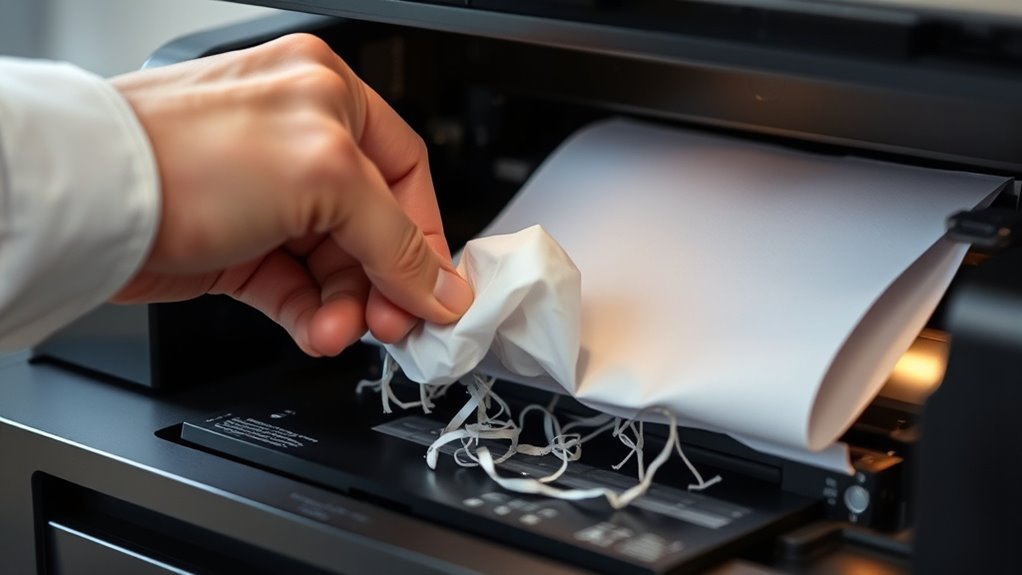
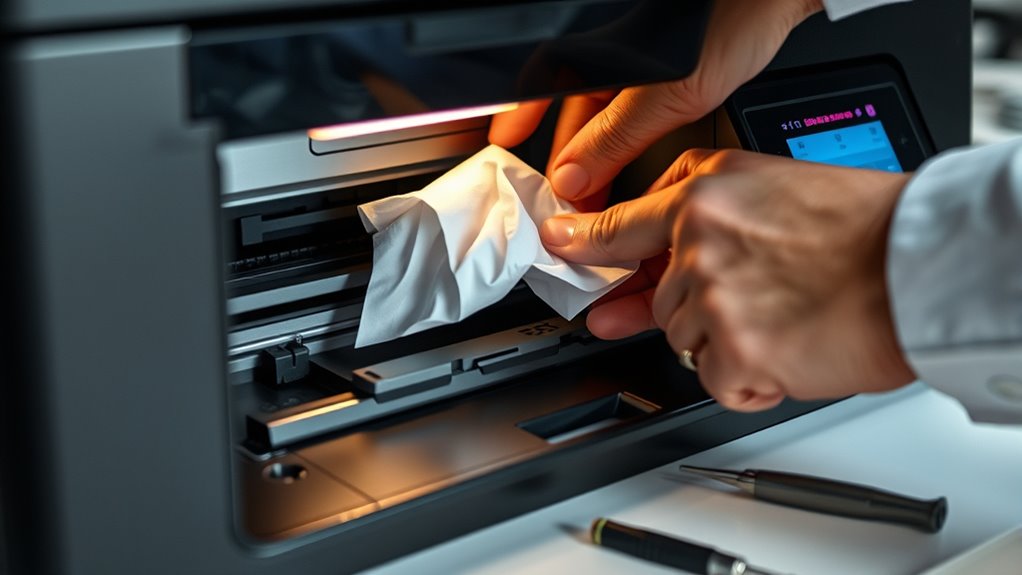
Ever experienced the frustration of a jammed printer right before an important deadline? It’s a situation that can throw off your entire schedule and leave you scrambling. But don’t panic. The first step is to diagnose the problem quickly. Most printer jams happen along the paper path, the route the paper follows inside your machine. When paper gets stuck, it’s often because something is out of place or debris is blocking the way. To fix this, turn off your printer and carefully open the access panels. Gently remove any jammed paper, making sure to pull it out smoothly to avoid tearing. If you notice bits of paper still caught inside, use tweezers or a soft cloth to clear away any remnants. While you’re at it, check for any obstructions along the paper path that might cause future jams, such as small bits of paper or dust.
Once the paper is clear, you might need to examine the toner cartridge. Sometimes, toner buildup or uneven distribution can lead to print quality issues or paper jams. If you’ve been experiencing streaks, smudges, or faint prints, it’s a good idea to perform a toner replacement. Most printers have a straightforward process for this: open the toner compartment, remove the old cartridge, and insert a new one. Be sure to handle the toner carefully, avoiding contact with the drum surface, which can be damaged easily. Proper toner replacement not only improves print quality but also reduces the chances of paper jams caused by toner clumps or uneven distribution inside the machine.
After clearing the jam and replacing the toner, close all panels securely. Before turning the printer back on, check the paper tray to ensure it’s loaded correctly and that the paper isn’t wrinkled or overloaded. Misaligned or crumpled paper can cause repeated jams, so straighten and reload the paper if needed. When you power up the printer, run a test print to confirm everything is functioning smoothly. If you still experience jams, double-check the paper path for any obstructions, and verify that the toner cartridge is seated properly. Sometimes, a simple reset or cleaning cycle can resolve lingering issues.
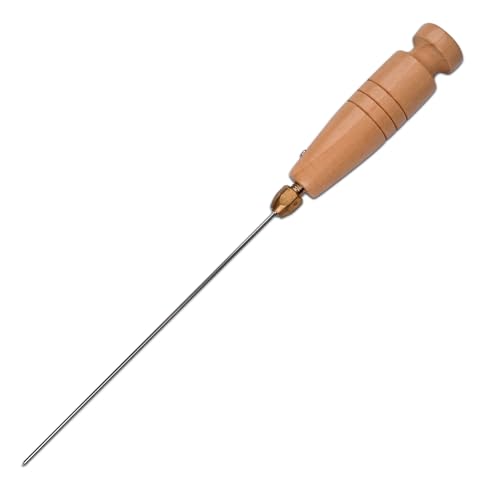
Asbrot 3P – Poke Pin Pusher, 3D Printer Cleaning Filament Clog Tool, Must-have for Printing Clogged Extruder, Hotend, Heatsink, Throats, Nozzles, Diameter 1.6mm, Length 160mm, Maintenance Kit, Cleaner
Poke Pin Pusher: The 3D printer filament unclogger tool is a versatile accessory designed to address filament blockages…
As an affiliate, we earn on qualifying purchases.
As an affiliate, we earn on qualifying purchases.
Frequently Asked Questions
How Can I Prevent Future Paper Jams Effectively?
To prevent future paper jams, you should handle paper carefully and stay attentive to paper handling practices. Always use the correct paper type and avoid overloading the tray. Conduct regular maintenance on your printer, including cleaning rollers and checking for worn parts. Keep the paper path clear of debris, and make sure papers are aligned properly before printing. These steps help minimize jams and keep your printer running smoothly over time.
What Types of Paper Are Most Prone to Jamming?
You’ll find that low-quality paper or paper with inconsistent thickness is most prone to jamming. Thin or cheap paper often wrinkles or folds, causing paper feed issues. Thick or excessively stiff paper can get stuck in the rollers. Always choose high-quality, properly rated paper for your printer, and verify the paper’s thickness matches your printer’s specifications to reduce jams and keep your printing smooth.
How Do I Clean the Printer Rollers Safely?
Think of your printer rollers as the feet of a dancer, vital for smooth moves. To clean them safely, turn off your printer, unplug it, and gently wipe the rollers with a lint-free cloth dampened with a bit of water or isopropyl alcohol. Avoid harsh chemicals. If rollers are worn or damaged, consider roller replacement. Regular roller cleaning ensures your printer performs gracefully, without missteps or jams.
Why Does My Printer Jam Only With Certain Paper Brands?
Your printer jams only with certain paper brands because of differences in paper quality and thickness. Cheaper or low-quality paper often has irregular surfaces or uneven thickness, which can cause it to catch or misfeed in the printer. Thicker paper may also be too stiff for your printer’s rollers. To prevent jams, stick to high-quality, consistent paper and check your printer’s specifications for compatible paper thickness.
What Should I Do if the Printer Makes Unusual Noises During a Jam?
If your printer makes unusual noises during a jam, don’t just sit there like a knight in shining armor—take action. First, turn off the printer to avoid damaging noisy gears. Gently open the cover and remove the jammed paper. Check for any tangled or loose parts, and listen for any unusual sounds like grinding. If noises persist, consult the user manual or contact support to prevent further damage.

TN760 Toner Cartridges Replacement for Brother Toner TN-730/TN-760 Compatible HL-L2350DW MFC-L2710DW MFC-L2750DW HL-L2395DW HL-L2370DW DCP-L2550DW HL-L2390DW (Black, 2 Pack)
Printer Compatibility: Compatible with HL-L2325DW HL-L2350DW HL-L2395DW HL-L2390DW HL-L2370DW HL-L2370DWXL MFC-L2690DW MFC-L2710DW MFC-L2717DW MFC-L2730DW MFC-L2750DW MFC-L2750DWXL DCP-L2550DW Printer
As an affiliate, we earn on qualifying purchases.
As an affiliate, we earn on qualifying purchases.
Conclusion
Now that you know some quick fixes for a jammed printer, you’re ready to tackle the problem head-on. But what if the jam isn’t as simple as it seems? Could there be a hidden issue lurking inside? Stay alert and keep your tools close—sometimes, the solution isn’t where you expect it. The next step might just surprise you. Ready to uncover what’s really causing the trouble? Your printer’s next move depends on it.

Printer Cleaning Kit for Epson, Printhead Cleaning Kit for HP, Inkjet Printer Head Cleaner for Canon, Printers Cleaner Printhead Cleaning Solution for Inkjet, Printers Print Head Cleaning Kits 100mL
Printhead Nozzles Cleaner 100mL for All Inkjet Printers: Absonic Inkjet Printer Cleaning Solution for Epson Inkjet Printer, Printer…
As an affiliate, we earn on qualifying purchases.
As an affiliate, we earn on qualifying purchases.
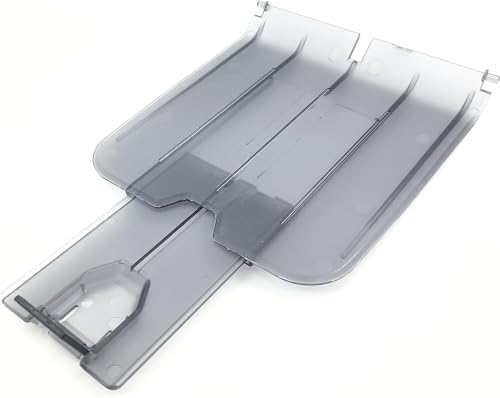
Translucent Computer Printer Trays RM1-0659-000CN RM1-2055-000CN Paper Output Tray Assembly Delivery Tray Assy Compatible with HP 1018 1020 1010 1012 1015
VERSATILE USE: Perfect for creating professional templates and stencils with computer printers, ideal for crafting and design projects
As an affiliate, we earn on qualifying purchases.
As an affiliate, we earn on qualifying purchases.