This checklist is for developers, QA teams, and hardware tinkerers who need practical tools for software debugging and diagnostics. It covers instruments for examining signals, power, heat, and cable connections.

Get business pricing on monitors, keyboards and dev gear
- Business-only prices and quantity discounts
- Tax-exempt purchasing
- Multiple users, one account, clear invoices
The sections are organized by diagnostic task, from logic and waveform analysis to thermal checks and cable verification. Each slot names a pick and gives guidance on choosing and using that type of tool.
Use the checklist by matching each tool to a problem you actually encounter, then checking compatibility and fit with your devices and workflow. Confirm connector types, supported platforms, channel needs, and the measurements you need before buying.
USB Logic Analyzer
A logic analyzer helps you inspect digital activity across connected signals, making it useful when debugging communication between components or tracing a timing issue. The Saleae Logic Pro 16-Channel Logic Analyzer, Red is the pick for this slot. Before choosing any analyzer, list the signals you need to observe at the same time and confirm that the available channels cover them.
A common mistake is to focus on channel count while overlooking voltage compatibility, probe connections, and the software workflow. Check the signal levels used by your hardware and verify that the analyzer and its probes are suitable for them. Also confirm operating-system support and whether the capture and decoding features fit the protocols you work with. Make sure the included or separately required leads can reach your test points without pulling loose, and consider whether the setup will fit your bench and device enclosure.
For reliable captures, plan how you will connect the analyzer and establish a shared ground where required by your setup. Check that probes can attach securely to the target board and that the software can display the channels and data you need. Match the tool to your signals and workflow before relying on it for diagnosis.
What to look for:
- Channel count that covers the signals you need to capture together
- Voltage compatibility with the target hardware
- Probe and connector fit for your test points
- Software support for your operating system and protocols
- Lead reach and a secure connection to the board
Saleae Logic Pro 16-Channel Logic Analyzer, Red
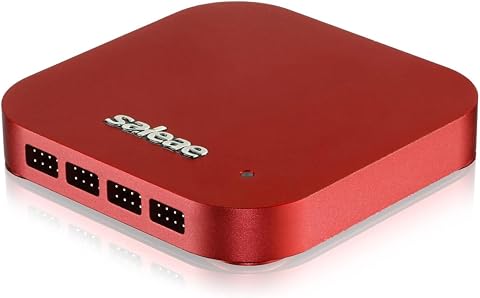
A 16-channel logic analyzer with inputs that support both digital and analog signals. It decodes SPI, I2C, and over 23 other protocols, and works with Windows, macOS, and Linux.
Pros:
- Supports both digital and analog inputs
- Decodes SPI, I2C, and 23+ additional protocols
- High digital and analog sample rates
- Compatible with Windows, macOS, and Linux
Cons:
- Sample capacity uses the connected PC’s memory
Best for: Teams tracing digital communications across several signals
Not ideal for: Setups needing analog waveform measurements
Bottom line: Choose this analyzer when its channel capacity, voltage compatibility, probes, and software match your target hardware.
Digital Oscilloscope
An oscilloscope lets you examine voltage changes over time, helping you investigate waveform shape, timing, and signal behavior. The Siglent SDS2104X Plus 4-Channel Digital Oscilloscope, 100 MHz, 2 GSa/s is the pick for this slot. Before selecting a scope, identify the signals and events you need to capture and check that its bandwidth, sample rate, and channels suit those tasks.
A frequent buying mistake is to assume a headline bandwidth alone guarantees a useful measurement. Consider probe compatibility, probe attenuation, and the voltage range of your signals, and make sure the probes connect securely to your test points. Check whether four channels cover the signals you need to compare at once. Confirm that the scope’s controls, display, and data export options fit your bench workflow, and check the space and power connections required for the instrument.
Think through how you will trigger on the event under investigation and whether the available capture and analysis tools fit your debugging work. For mixed-signal tasks, determine whether you also need a separate logic analyzer. Plan around the measurement you need to make: the signal’s speed, amplitude, and behavior all affect whether the scope and probes are a good fit.
What to look for:
- Bandwidth appropriate for the signals under investigation
- Sample rate and capture features suited to transient events
- Enough channels for signals you need to compare
- Probes compatible with signal voltage and scope inputs
- Display, triggering, and export options that fit your workflow
Siglent SDS2104X Plus 4-Channel Digital Oscilloscope, 100 MHz, 2 GSa/s

The Siglent SDS2104X Plus is a 4-channel digital oscilloscope with 100 MHz bandwidth and a maximum sampling rate of 2 GSa/s. It features a large 10.1-inch touch screen, high waveform capture rates, and advanced serial bus triggering and decoding capabilities for detailed signal analysis.
Pros:
- High sampling rate and record length for detailed signal analysis
- Large, responsive touch screen with multi-touch gestures
- Advanced serial bus decoding and triggering capabilities
Cons:
- Complex interface may require learning curve for beginners
- Limited bandwidth to 100 MHz for some high-frequency applications
Best for: Engineers investigating analog waveforms and timing
Not ideal for: Workflows limited to digital protocol decoding
Bottom line: Select this scope when its bandwidth, sampling, probes, and channel count fit the measurements you need.
USB Power Meter
A USB power meter can help you observe voltage and current while troubleshooting a powered device or cable. The FNIRSI USB Tester 4-28V 7A LCD USB A&C Voltage Current Power Tester Mu is the pick for this slot. Start by identifying the source, device, and USB connection you need to check, then compare their supported ranges and connector types with the tester’s stated specifications.
One common mistake is to treat all USB connections and power setups as interchangeable. Check whether the tester’s connectors fit the source and device, and whether its voltage and current range covers the intended measurement. Verify the direction and arrangement of connections required for your setup, especially if you need to test a cable or device in-line. Confirm that the display is readable where you’ll use it and that the tester’s physical dimensions leave enough room for adjacent ports or plugs.
Use the meter as part of a controlled diagnostic setup, and avoid drawing conclusions from a single reading without considering what the source and device are doing at that moment. Check that the device under test can operate through the tester’s connection path. If you need logging or measurements beyond what the listed product description establishes, confirm those capabilities directly before buying. Match the ports and range to your exact power troubleshooting task.
What to look for:
- Connector types that fit both source and device
- Voltage range appropriate to the setup
- Current range suitable for the expected load
- Physical clearance for in-line use and adjacent ports
- A display that is easy to read at the testing location
FNIRSI USB Tester 4-28V 7A LCD USB A&C Voltage Current Power Tester Multimeter w

The FNIRSI USB Tester FNB58 is a multifunctional device designed to monitor voltage, current, power, resistance, and capacity across multiple USB ports. It supports fast charge protocol detection, waveform analysis, and data recording, making it ideal for testing and troubleshooting USB charging devices.
Pros:
- Supports multiple fast charging protocols and automatic detection
- Provides detailed real-time data with waveform and ripple analysis
- Includes app software for extended monitoring and data logging
- Multiple USB interfaces for versatile testing
Cons:
- No printed manual included; requires QR code access for documentation
- Device defaults to 5V output if incompatible protocol is detected
- Complex setup may require technical knowledge
Best for: Troubleshooting USB voltage and current behavior
Not ideal for: Measurements requiring unconfirmed logging features
Bottom line: Confirm connector fit and measurement ranges against the source, device, and cable you plan to test.
Thermal Camera
A thermal camera can help you locate areas of differing surface temperature while investigating a device that behaves unexpectedly. The FLIR Edge Pro Wireless Thermal Imaging Camera for iOS and Android is the pick for this slot. Because the product name identifies iOS and Android, start by checking your specific phone or tablet model and operating-system compatibility.
A common mistake is to assume that a wireless camera works with every mobile device or app version. Verify device compatibility, the required app, connection method, and any setup requirements before buying. Check how the camera attaches or is positioned during use, and whether its form factor works with your phone case and the space around the equipment being inspected. Consider the distance and access you have to the target, since a camera that cannot be positioned appropriately may not help you see the area of interest clearly.
Thermal imagery can guide inspection, but it does not by itself identify the cause of a software or hardware fault. Use it alongside other diagnostic information and confirm the camera’s resolution, measurement functions, and supported temperature range from the manufacturer if those details matter to your work. Check the full mobile setup before relying on it in a troubleshooting workflow, including the device, app, and connection conditions.
What to look for:
- Compatibility with your exact iOS or Android device
- App requirements and supported operating-system versions
- Wireless connection and setup requirements
- Physical fit with the phone case and inspection space
- Imaging and measurement specifications suited to your task
FLIR Edge Pro Wireless Thermal Imaging Camera for iOS and Android
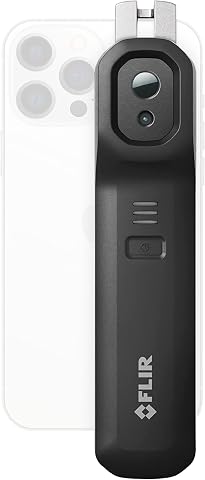
The FLIR Edge Pro is a wireless thermal imaging camera that connects to iOS and Android phones or tablets via Bluetooth. Its 160 × 120 infrared sensor uses VividIR to upscale images to 480 × 360, while MSX combines thermal and visual details; it measures temperature within ±3°C or ±5% under specified operating conditions.
Pros:
- Wireless connection supports use around corners and in tight spaces
- VividIR upscaling and MSX improve thermal image detail
- Temperature accuracy is specified for defined operating conditions
- Works with both iOS and Android devices
Cons:
- Not water resistant
- Native infrared resolution is 160 × 120
Best for: Inspectors locating temperature patterns around equipment
Not ideal for: Users needing a standalone camera workflow
Bottom line: Verify phone, app, and connection compatibility, then confirm the imaging specifications your inspections require.
USB-C Cable Tester
A cable tester can help determine whether a cable or connection is a likely source of a device problem. The listed pick is USB Hub for Tesla Model Y 2025-2026 and Model 3 2024-2026, Center Cons, whose product name describes a vehicle-specific USB hub rather than a USB-C cable tester. That mismatch makes this slot difficult to evaluate as a cable-testing tool.
Do not assume that a hub tests cable continuity, wiring, or USB-C capabilities. Before considering this product for any role, confirm its actual function, connector layout, and compatibility with your vehicle and devices from the manufacturer or seller. The model years in the name are a prompt to check your exact vehicle, but they do not establish fit for every trim or configuration. Also check the ports and cable types involved in your debugging setup; a hub’s presence in the connection path does not show whether a separate cable is working correctly.
For a dedicated cable-testing need, identify the cable standards and fault types you need to check, then seek a tool whose stated functions cover them. Confirm whether it handles USB-C and any required data or power checks. Resolve the product mismatch before buying this pick for the stated checklist slot, and use a dedicated tester only after its compatibility and functions are clear.
What to look for:
- A product explicitly identified as a cable tester
- Support for the USB-C cable types you use
- Test functions for the faults you need to diagnose
- Compatibility with your devices and connection setup
- Clear documentation of the product’s actual purpose
USB Hub for Tesla Model Y 2025-2026 and Model 3 2024-2026, Center Console Dockin

A custom‑fit center console docking station designed for Tesla Model Y (2025‑2026) and Model 3 (2024‑2026). It features dual retractable charging cables, both USB‑A and USB‑C fast‑charging ports, and installs without any drilling or permanent modifications.
Pros:
- Custom fit for Tesla Model Y and Model 3 with OEM‑style appearance
- Dual retractable cables keep the console tidy and prevent tangles
- Supports both USB‑A and USB‑C fast charging simultaneously
- Easy, tool‑free installation without drilling
Cons:
- Only two ports may limit simultaneous device charging
- Retractable cable length may be short for some devices
- May not provide enough power for high‑wattage laptops
Best for: Buyers confirming a vehicle hub’s intended role
Not ideal for: Anyone seeking a dedicated USB-C cable tester
Bottom line: The listed product name describes a Tesla USB hub, so verify its function before treating it as a cable tester.
Network Cable Tester
A network cable tester can help you check copper cabling when a connection problem may come from the physical link. The Fluke Networks MicroScanner2 Copper Cable Verifier with Built-In Intel is the pick for this slot. Begin by listing the cable types, connectors, and wiring situations you need to diagnose, then confirm that the verifier supports them.
A common mistake is to buy based on a product name without checking the specific functions required. The name identifies a copper cable verifier, but it does not establish every test or compatibility detail. Verify supported cable types, connector fit, and the diagnostics provided in current manufacturer documentation. Check whether your work involves installed cabling, patch leads, or both, and make sure the tool and any required accessories suit those conditions. Also consider whether its physical controls and display can be used comfortably at the locations where you inspect connections.
Confirm that the device supports the wiring checks and troubleshooting steps in your workflow before purchase. If you need results beyond basic verification, such as additional cable characterization, establish that the specific capability is documented. Check accessory requirements and whether the tool can be used across the endpoints in your environment. Choose for your cabling tasks, not just the category name, and ensure the verifier’s documented functions match the faults you need to investigate.
What to look for:
- Support for your copper cable types and connectors
- Documented verification functions for the faults you investigate
- Compatibility with installed cabling and patch leads as needed
- Any required accessories for your setup
- Readable controls and display for your work locations
Fluke Networks MicroScanner2 Copper Cable Verifier with Built-In IntelliTone Ton

The MicroScanner2 Cable Verifier tests copper cables for length, wiremap, cable ID, and faults. It supports troubleshooting for RJ11, RJ45, coax, and network speeds up to 10/100/1000Base-T, including VoIP applications.
Pros:
- Comprehensive cable testing features
- Displays cable length and faults on one screen
- Supports multiple cable types and network speeds
Cons:
- Limited to copper cable verification
- No mention of wireless testing capabilities
Best for: Technicians checking copper network cabling
Not ideal for: Users needing capabilities not documented for this verifier
Bottom line: Confirm supported cable types, connectors, and diagnostic functions against the cabling problems you need to solve.
Build your kit in a need-first order: start with the instrument that addresses your most frequent diagnostic problem, then add tools for other recurring tasks. Check compatibility and specifications before each purchase, especially for signal levels, ports, mobile devices, and cable standards.
With a clear checklist, you can choose tools that fit your equipment and workflow without overcomplicating the bench. Verify the USB-C tester listing carefully, and use documented capabilities to guide your decisions across every slot.