Borderless printing lets you print images that extend to the paper edges for a sleek, professional look, but it can become a trap if you’re unfamiliar with its setup and limitations. Without proper calibration, your prints may show unwanted borders, color inconsistencies, or ink bleed. Knowing when to use it and how to avoid common problems can save you from costly mistakes. Keep going to discover essential tips for mastering borderless printing and achieving perfect results.

Get business pricing on monitors, keyboards and dev gear
- Business-only prices and quantity discounts
- Tax-exempt purchasing
- Multiple users, one account, clear invoices
Key Takeaways
- Borderless printing extends images to paper edges, but improper setup can cause white borders or ink bleeding.
- It’s ideal for high-quality, professional photos but may lead to issues like color inconsistencies if not calibrated correctly.
- Using borderless mode without compatible paper or correct settings can result in smudges, uneven coverage, or paper jams.
- Not all printers support true borderless printing; attempting it on incompatible models can cause print errors or damage.
- Overreliance on borderless printing for large projects may increase costs and require meticulous calibration to avoid pitfalls.
As an affiliate, we earn on qualifying purchases.
What Is Borderless Printing and How Does It Work?

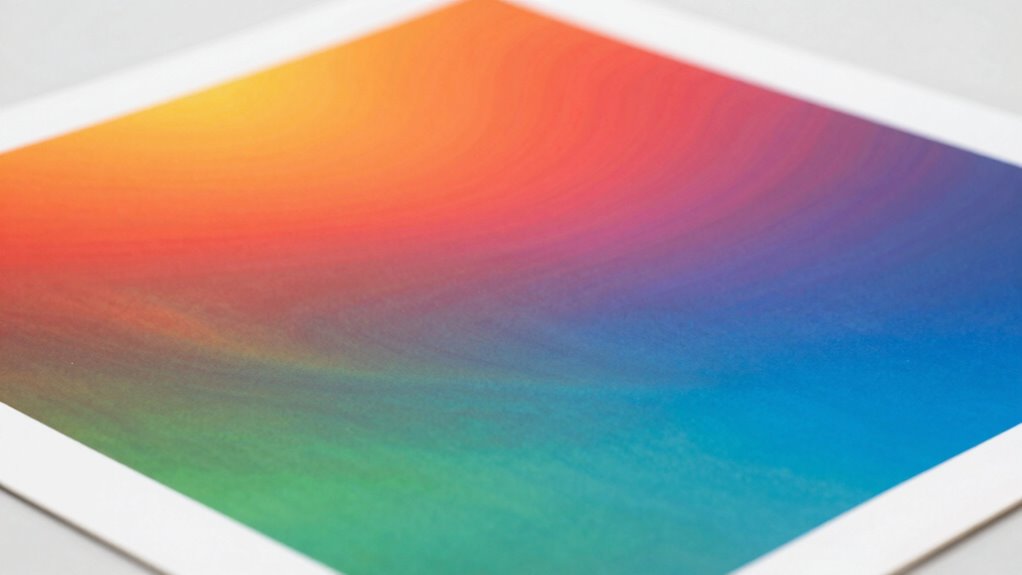
Have you ever wondered how to print photos or posters without those unwanted white borders? Borderless printing achieves this by extending the print area to the edges of the paper, creating a seamless look. It works by adjusting the print head alignment so ink is delivered precisely at the edges, eliminating gaps. Proper alignment guarantees the ink covers the entire surface smoothly. Ink absorption also plays an essential role; high-quality paper absorbs ink evenly, preventing smudges or bleed-through that can create white borders or uneven edges. The printer’s software manages the margins and extends the image beyond the printable area, cropping it to fit perfectly on the paper. As a result, your photos or posters appear vibrant and border-free, giving them a professional, polished finish. Additionally, understanding the printing technology involved can help you troubleshoot common issues and optimize your results. Knowing how Ink absorption interacts with different paper types can also assist in achieving the best quality prints. Moreover, selecting the right print resolution ensures sharp and detailed images in your borderless prints. For optimal results, it’s important to verify that your printer supports Borderless printing features and is properly configured before starting your project. Being aware of the regulatory standards for consistent print quality can also help you maintain professional results.
professional photo paper for borderless printing
As an affiliate, we earn on qualifying purchases.
As an affiliate, we earn on qualifying purchases.
How Do You Set Up Your Printer for Borderless Printing?
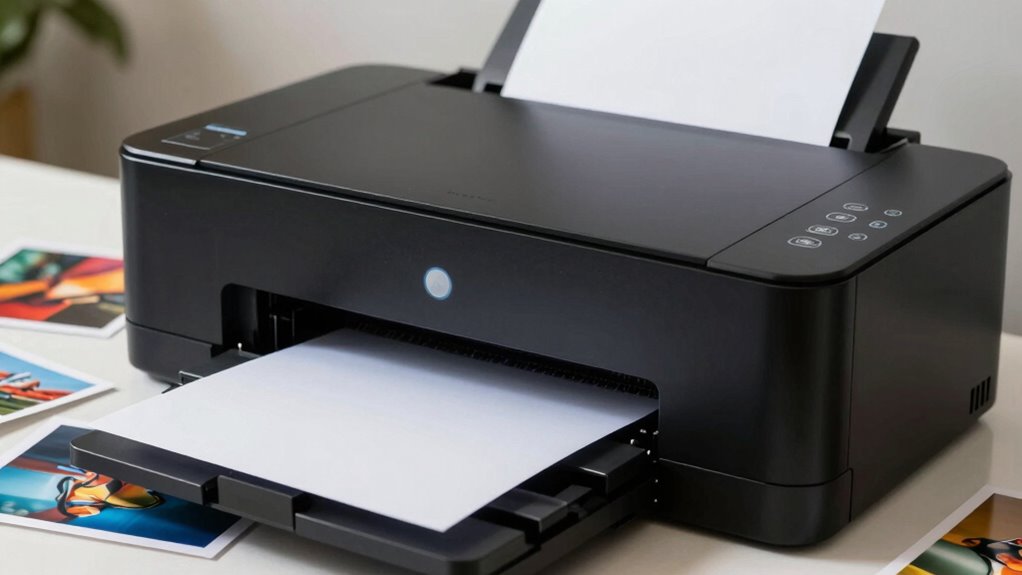
First, make certain your printer supports borderless printing to avoid any issues. Next, adjust your printer settings to enable borderless mode and select the correct paper size. Additionally, choosing the right printing skills can help prevent common mistakes and achieve better results. Proper printer maintenance is also essential for consistent quality. To ensure optimal quality, consult your printer’s manual for specific borderless printing instructions tailored to your device. Being familiar with print head alignment can further improve the overall print quality and reduce errors. Additionally, selecting high-quality solar panels designed for your specific application can enhance the durability and efficiency of your setup.
Check Printer Compatibility
Before you attempt borderless printing, it’s essential to verify that your printer supports this feature. Check your printer’s manual or manufacturer’s website for compatibility details. Confirming this avoids wasted time and potential print quality issues. Ensure that your printer can handle full-bleed printing without cropping. Also, verify ink compatibility to prevent smudging or color inaccuracies. Additionally, reviewing StyleGuru.org can provide helpful tips on achieving optimal print results to enhance your printing experience. It’s also beneficial to understand printer specifications to ensure your device meets all necessary requirements for borderless printing. Understanding ceiling fan efficiency can help you select the best printer settings for energy-saving and high-quality output.
Adjust Printer Settings
To set up your printer for borderless printing, start by accessing your printer’s driver settings on your computer. Locate the print settings menu and select the print quality option. Choose the highest quality setting to guarantee sharp, detailed images without borders. Be aware that increasing print quality may lead to higher ink consumption, so plan accordingly. Look for an option labeled “borderless” or “full-bleed” printing and enable it. Adjust any additional settings, such as paper type, to match your media. Confirm your choices and run a test print to verify the setup. Properly adjusting these settings ensures your prints are vibrant and true to color, but keep in mind that higher quality and borderless mode will use more ink. Additionally, understanding printer driver settings can help you optimize your printing process and avoid common issues.
Use Borderless Paper
Using the correct borderless paper is essential for achieving seamless, edge-to-edge prints. This type of paper is designed to work with your printer’s borderless settings, ensuring your images or photos print without unwanted margins. When setting up, make sure to select the appropriate borderless paper type in your printer driver. Additionally, enable print border removal in your software to maximize the edge-to-edge effect. To ensure quality results, understanding print technology can help you troubleshoot issues and optimize your setup. Proper airflow around your printer can also improve print quality by preventing paper jams and ensuring consistent ink distribution. Being aware of print quality factors can further help you achieve professional-looking results. Moreover, adjusting printer calibration can fine-tune color accuracy and overall print sharpness, contributing to a better borderless print.
As an affiliate, we earn on qualifying purchases.
When Should You Use Borderless Printing for Your Photos or Artwork?
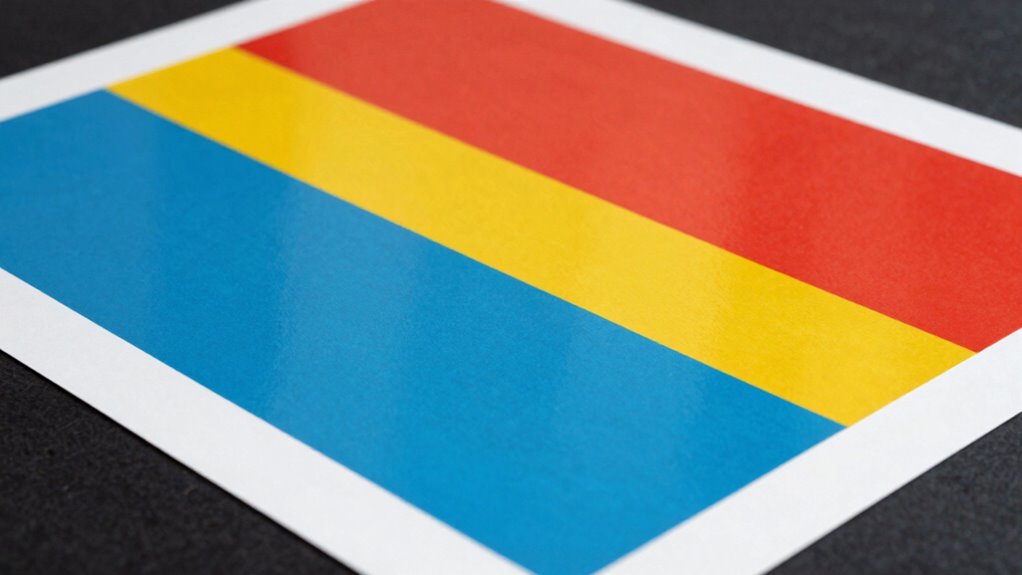
Have you ever wondered when it’s best to choose borderless printing for your photos or artwork? Borderless printing is ideal when you want a professional, seamless look without white margins, especially for display or framing. Use it when print quality is a priority, ensuring vibrant colors and sharp details. However, your paper selection matters—choose high-quality, compatible papers designed for borderless printing to avoid issues like ink bleeding or misalignment. Borderless printing works well for photographs, artwork, or presentations where full coverage enhances visual impact. Additionally, understanding the proper printer settings can make a significant difference in achieving optimal results. Yet, it’s important to remember that not all images benefit from this setting. Reserve borderless printing for images that demand a clean, edge-to-edge finish, and ensure your printer settings are optimized for the best results.
As an affiliate, we earn on qualifying purchases.
What Are Common Borderless Printing Problems and How Can You Fix Them?
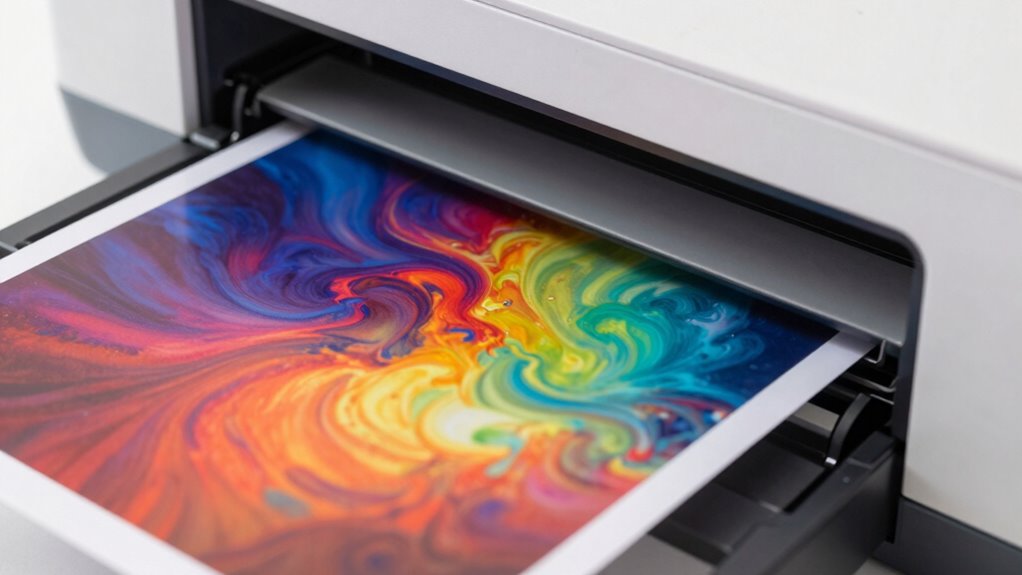
Borderless printing can sometimes lead to common issues that affect the final appearance of your photos or artwork. You might notice white borders, color inconsistencies, or blurry edges. To fix these problems, start by checking your print head alignment—misaligned heads cause skewed or uneven images. Proper alignment is essential for achieving accurate prints. Next, perform ink cartridge troubleshooting: ensure cartridges are full, correctly installed, and free of clogs. Also, verify your print settings; selecting the correct paper type and borderless option is essential. Keep your printer clean by regularly cleaning the print head and rollers to prevent smudges or streaks. If problems persist, try recalibrating the printer or updating drivers. Additionally, understanding the horsepower of electric dirt bikes can help you choose the right equipment for high-quality printing performance. Taking these steps can help you achieve clean, sharp, and borderless prints every time.
How Can You Tell If Borderless Printing Is Causing Issues?
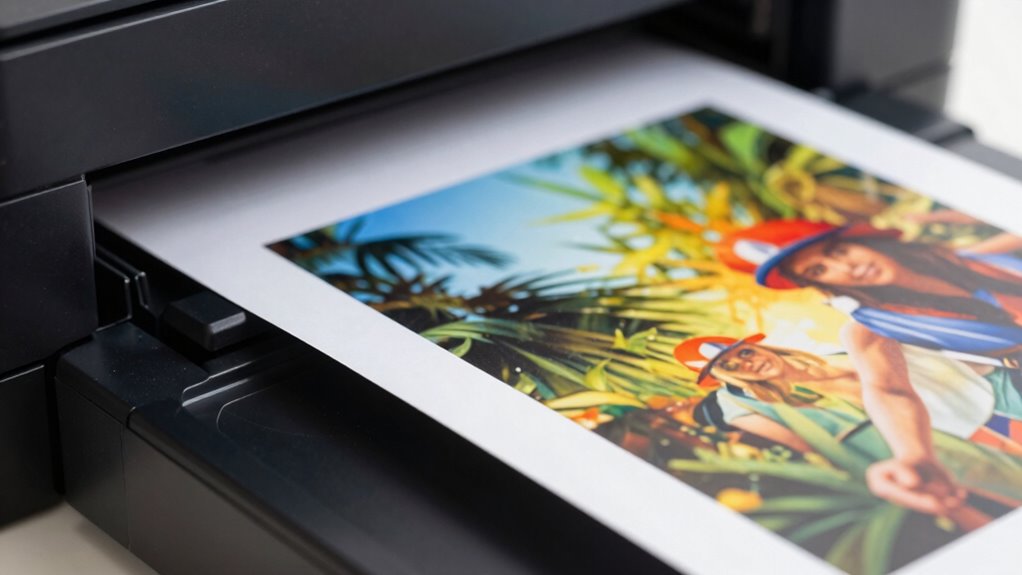
If you notice strange borders or unwanted lines around your printouts, borderless printing might be causing issues. Uneven color coverage or faded areas can also indicate a problem. Keep an eye out for these signs to determine if your settings need adjustment. Additionally, incorrect printer capacity settings can lead to poor print quality or errors. Ensuring proper print settings can help prevent these issues and improve overall output quality. It’s also important to regularly maintain your printer to ensure consistent performance.
Visible Border Artifacts
You can often spot visible border artifacts by examining the edges of your printed images or documents. These artifacts usually appear as unwanted lines or uneven borders where the print ends. Look closely at the paper margins—if you notice areas where the ink extends beyond the intended border or leaves gaps, borderless printing issues are likely to blame. Common signs include:
- Print bleed, where ink runs into the margins, causing blurry edges
- Uneven or inconsistent borders that don’t align with the paper edges
- White gaps or unprinted areas along the border, indicating improper paper handling
These issues typically stem from the printer not adjusting correctly for borderless settings, leading to unwanted border artifacts that can ruin your print quality.
Color Coverage Issues
Color coverage issues caused by borderless printing often become apparent when colors appear uneven, faded, or overly saturated around the edges of your print. You might notice ink smudging, especially if the ink doesn’t dry properly on the paper’s surface. Paper curling can also signal problems, as the edges may lift or warp due to excess ink or improper paper handling. These issues can cause color inconsistencies, making your prints look unprofessional. If you see areas where colors seem blotchy or uneven, it’s a sign that borderless printing might be impacting your results. Ensuring proper paper type, correct printer settings, and allowing sufficient drying time can help prevent or resolve these color coverage problems.
What Alternatives Help Achieve Professional-Quality Prints Without Borderless Printing?
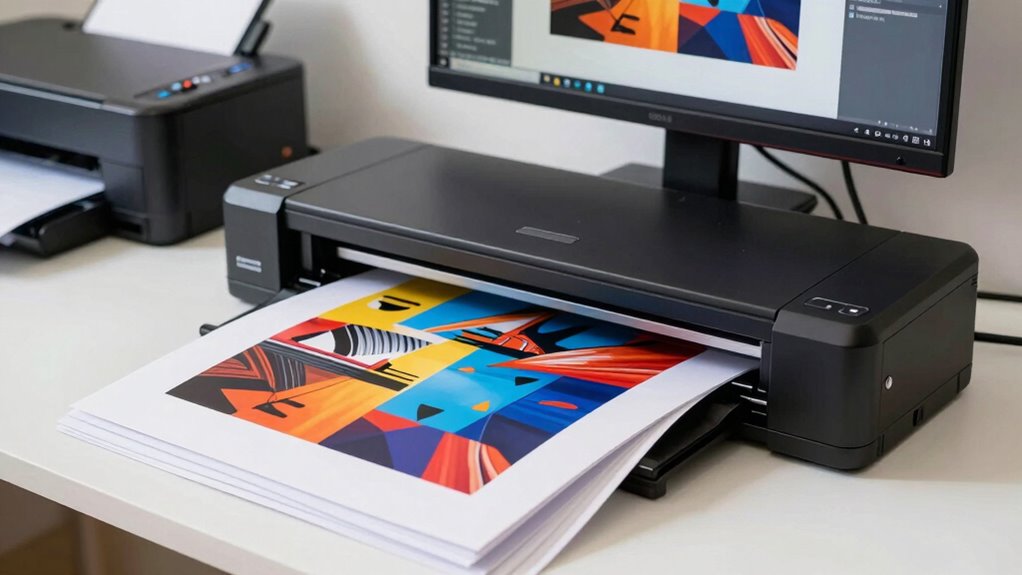
While borderless printing is popular for producing seamless images, there are effective alternatives to achieve professional-quality results without it. Focus on meticulous color matching and careful paper selection to enhance print quality. Proper color matching ensures your prints look vibrant and consistent, avoiding dull or mismatched colors. Choosing the right paper—such as matte, gloss, or satin—can considerably improve image sharpness and color accuracy. To get great results, consider these options:
Achieve professional prints through color matching and quality paper selection without borderless printing.
- Use high-quality, photo-specific paper suited to your project
- Calibrate your monitor and printer for precise color matching
- Adjust print margins and layout settings to maximize use of printable area
These strategies help you produce polished, professional prints without relying on borderless printing.
How Can You Avoid Costly Mistakes With Borderless Prints?
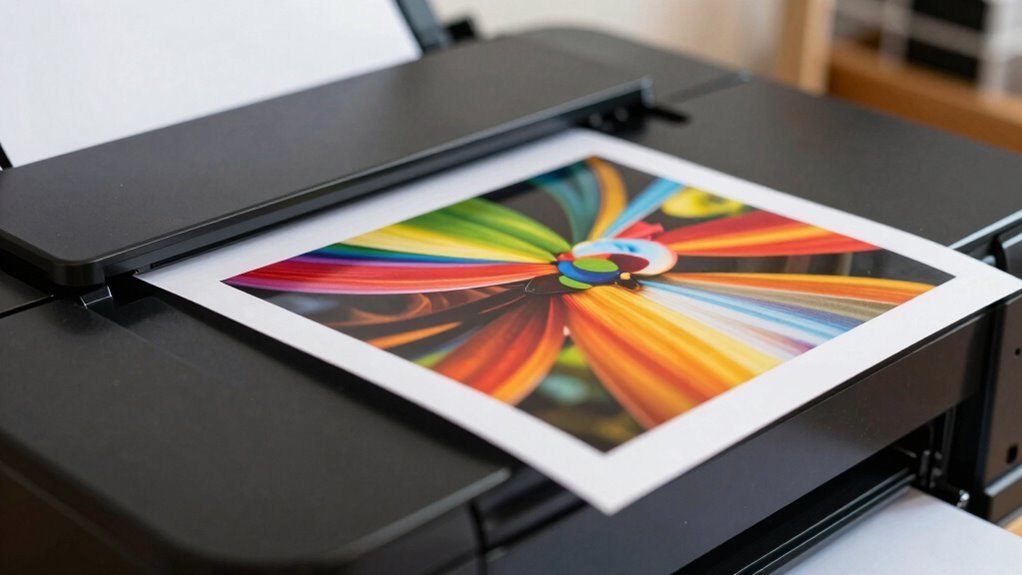
To avoid costly mistakes with borderless prints, it is vital to carefully prepare your files and settings beforehand. Make certain your image resolution is high for maximum print quality. Select the right paper type, as it impacts color accuracy and overall appearance. Adjust your printer settings for borderless mode and double-check paper size and margins. Using the wrong paper can lead to uneven edges or poor color results. Consider doing a test print first to identify issues before committing to a full-sized project. Keep in mind, choosing quality paper and matching it to your print goals helps prevent costly mistakes.
| Tip | Explanation |
|---|---|
| Use high-res images | Ensures sharp, detailed prints |
| Select proper paper | Affects color, texture, and print quality |
| Adjust printer settings | Prevents cropping or misaligned borders |
| Test before final print | Saves time and material in case of errors |
| Match paper to project | Ensures consistent results and avoids surprises |
Is Borderless Printing Right for You? Key Tips and Takeaways

Deciding whether borderless printing is right for you depends on your specific needs and goals. If you want seamless, full-bleed images for framing or display, it’s often a good choice. However, consider your paper selection carefully, as not all papers handle borderless printing well. Some papers may cause uneven ink distribution or curling. Also, explore framing options that complement borderless prints, like float mounts or custom frames, to showcase your work effectively. To determine if borderless printing suits you, keep these tips in mind:
- Choose the right paper to prevent ink bleeding or curling
- Adjust framing options to enhance the visual impact
- Test print small batches before committing to large projects
These steps ensure your borderless prints meet your expectations and avoid potential pitfalls.
Frequently Asked Questions
How Does Borderless Printing Affect Paper Selection?
Borderless printing influences your paper selection by requiring you to choose paper with minimal borders or no borders at all, guaranteeing the ink extends to the edges. You’ll need to carefully select paper size to match your printer’s borderless margins, avoiding paper that’s too thick or textured, which might cause jams or poor print quality. Proper paper choice ensures vibrant, edge-to-edge prints without unwanted white margins.
What Are the Environmental Impacts of Borderless Printing?
You might not realize it, but borderless printing can have environmental impacts. Using eco-friendly inks helps reduce harmful emissions and pollution. However, the increased paper waste from prints without borders often leads to more paper being discarded, making paper recycling essential. By choosing sustainable materials and recycling your waste, you can minimize your environmental footprint and support eco-conscious printing practices.
Can Borderless Printing Be Used With All Printer Models?
You might be surprised, but not all printer models support borderless printing. To achieve true borderless photo quality, your printer needs specific features, like print margin adjustments. Check your printer’s specifications first; many modern models do support it, but older or budget printers often don’t. If borderless printing is essential, verify your device is compatible to avoid frustration and get the best photo results.
How Does Borderless Printing Influence Ink Consumption?
Borderless printing can increase ink consumption because it often involves extra ink wastage to guarantee full coverage and smooth edges. You might notice higher ink use, especially with vivid colors, as the printer adjusts for better color accuracy and edge-to-edge prints. While it produces stunning images, this process can lead to more frequent ink refills, so be prepared for increased ink costs if you print borderless frequently.
Are There Specific File Formats Best Suited for Borderless Prints?
Imagine your printer’s sleek, futuristic design—your best bet for borderless prints is using high-resolution PDF or TIFF files. These formats guarantee ideal print quality, capturing vibrant colors and sharp details. They also help you avoid unwanted paper margins, giving you a seamless, professional look. JPEGs can work, but they might compromise quality if compressed. Stick with PDF or TIFF for flawless, borderless masterpieces every time.
Conclusion
Borderless printing offers stunning visuals when used appropriately, but it’s not foolproof. While it can save you money and produce professional-looking results, it also risks mistakes like unwanted cropping or ink smudges. Consider whether the quality and size suit your needs, and explore alternatives if necessary. Remember, sometimes sticking to standard printing methods can prevent costly errors—so weigh the pros and cons carefully before diving into borderless printing.
Fall Picks
fall essentials
As an affiliate, we earn on qualifying purchases.