

Visual Studio Code and JetBrains IntelliJ IDEA are often compared by developers deciding whether a lightweight, highly customizable editor is enough or whether a more integrated IDE will save time. Both can handle everyday coding, Git, debugging and extensions, but they put those capabilities together differently. VS Code is free and works across a wide range of languages through extensions; IntelliJ IDEA brings stronger built-in code analysis and project tools, especially for Java and JVM development, with some advanced capabilities behind a paid subscription. Choose VS Code if you value flexibility, low cost and a quick setup across varied projects. Choose IntelliJ IDEA if you spend most of your time in substantial Java or Kotlin codebases and benefit from deeper navigation, refactoring and project understanding.

Get business pricing on monitors, keyboards and dev gear
- Business-only prices and quantity discounts
- Tax-exempt purchasing
- Multiple users, one account, clear invoices

VS Studio Code: The Complete Developer’s Guide
- ✔ Format: Developer guide
- ✔ Primary editor: Visual Studio Code
- ✔ Coverage: Core functionality and workflows
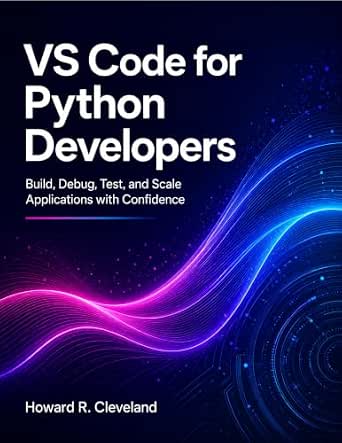
VS Code for Python Developers: Build, Debug, Test, and Scale Applications with Confidence
- ✔ Format: Practical developer guide
- ✔ Primary editor: Visual Studio Code
- ✔ Language focus: Python

Cursor for Developers: Shipping Code Faster with an AI-Native Editor
- ✔ Format: Practical developer guide
- ✔ Primary editor: Cursor
- ✔ Approach: AI-native editing
At a Glance
| Criteria | Visual Studio Code | JetBrains IntelliJ IDEA | Winner |
|---|---|---|---|
| [object Object] | Free core editor; many extensions are free, with optional paid services such as GitHub Copilot. | Free core features; paid Ultimate subscription adds advanced support for multiple frameworks and tools. | A |
| [object Object] | Install a small editor, then add extensions and configure settings to suit each project. | More functionality is ready after installation, with substantial settings and plugins available for tailoring. | Depends |
| [object Object] | Capable with language extensions, but key IDE-like features depend on extension choice and configuration. | Deep built-in analysis, navigation, inspections and refactoring for Java and supported JVM projects. | B |
| [object Object] | Broad ecosystem of extensions supports many languages and workflows. | Supports many languages, but depth varies; some advanced framework and language features require Ultimate. | A |
| [object Object] | Strong with suitable language extensions; behavior and feature depth can vary by extension. | Particularly strong project-wide search, inspections and refactoring for supported languages. | B |
| [object Object] | Generally starts lean, though extensions and large workspaces can increase memory use and startup time. | Can use more memory and take longer to start, especially with large projects or indexing. | A |
| [object Object] | Integrated source control and debugging, with features that vary by language extension. | Integrated Git tools and debuggers, with richer language-aware workflows in supported projects. | B |
VS Studio Code: The Complete Developer’s Guide
For developers who want one broad learning resource for VS Code, this guide has the clearest all-round role in the group. Its stated coverage spans core editor functions, customization, and productivity practices, with step-by-step tutorials and projects to connect those topics to actual work. That makes it a more flexible first choice than the Python-specific guide, which concentrates on a narrower set of development tasks, and a better fit than the Cursor book for readers who have already settled on VS Code.The breadth comes with a boundary: this is a guide to VS Code alone, not a comparison of editors or a general programming manual. Developers who want Python-centered debugging and testing may get more targeted help from the Python guide. Those considering AI-assisted editing may find Cursor’s workflow more relevant. The description also flags a familiar challenge for software books: editor updates can outpace print guidance. Since no edition or publication details were supplied, we should check its currency before relying on interface-specific instructions.
Pros:
- Covers core VS Code functionality in depth
- Uses practical tutorials and projects
- Addresses beginner workflows and advanced tips
- Includes customization and productivity guidance
Cons:
- Focuses exclusively on VS Code
- Some instructions may age as the editor changes
Best for: Developers who want a general, hands-on guide to VS Code, from core features through customization.
Not ideal for: Readers looking for cross-editor comparisons, Python-only instruction, or a guide centered on AI-assisted editing.
Bottom line: We recommend this as the broadest starting guide for learning VS Code, provided its edition is current enough for the workflows we need.
“We recommend this as the broadest starting guide for learning VS Code, provided its edition is current enough for the workflows we need.”
VS Code for Python Developers: Build, Debug, Test, and Scale Applications with Confidence
When our main question is how to use VS Code for Python work, this guide offers the most targeted promise in the lineup. It is organized around activities developers need to carry through a project—building, debugging, testing, and scaling—rather than teaching the editor across every use case. The focus can make the material easier to apply to Python projects than the broader VS Code guide, whose wider scope may leave less room for any one language workflow.That focus also narrows its audience. Readers need some familiarity with Python, and the book’s value is tied to using VS Code as the editor. A developer seeking a general VS Code introduction should start with the complete guide; someone weighing an AI-native workflow should consider Cursor instead. The supplied description mentions extensions and real-world examples, but gives no chapter list or edition details. We should verify that the specific Python tooling covered matches our environment before treating the guide as a reference for current project setup.
Pros:
- Focuses on Python development in VS Code
- Covers debugging and testing workflows
- Includes build and scaling topics
- Uses practical examples and extension guidance
Cons:
- Assumes baseline Python familiarity
- Editor-specific coverage limits its use for people on other tools
Best for: Python developers who already know the language and want structured VS Code guidance for debugging, testing, and project work.
Not ideal for: New Python learners, developers who use another editor, or readers seeking a general-purpose VS Code overview.
Bottom line: Choose this over the general VS Code guide when Python workflows are the priority and the reader already has programming fundamentals.
“Choose this over the general VS Code guide when Python workflows are the priority and the reader already has programming fundamentals.”
Cursor for Developers: Shipping Code Faster with an AI-Native Editor
This book takes the lineup in a different direction: rather than teaching Microsoft’s editor, it introduces Cursor as an AI-native coding environment. The description promises coverage of core features, integrations with development workflows, and real-world examples. That makes it the most relevant option for developers who want to understand how AI assistance might fit into coding and shipping software. Compared with the two VS Code guides, it is the only pick organized around that assisted-editor approach.Its difference is also its main tradeoff. Developers looking for a general reference to familiar editor basics will get broader VS Code coverage from the complete guide, while Python programmers seeking dedicated debugging and testing workflows have a closer match in the Python book. Cursor’s emphasis may also require a learning curve for readers new to AI-assisted tools. The listing does not establish which Cursor version or features the book covers, so we should confirm its edition and scope before expecting instructions to match the current editor. This is best treated as a focused workflow guide, not a neutral comparison of all code editors.
Pros:
- Focuses on an AI-native editor workflow
- Describes practical integrations into development
- Includes real-world usage examples
- Connects editor assistance to shipping software
Cons:
- AI-assisted tools may take time to learn
- Narrower relevance for developers committed to VS Code or other editors
- The supplied description does not identify the edition or feature version
Best for: Developers evaluating AI-assisted editing who want practical examples of integrating Cursor into software workflows.
Not ideal for: Readers seeking a broad VS Code manual, Python-specific instruction, or guidance independent of AI editing tools.
Bottom line: We would pick this guide to explore Cursor’s AI-assisted workflow, while checking its edition and accepting that it is narrower than a general editor manual.
“We would pick this guide to explore Cursor’s AI-assisted workflow, while checking its edition and accepting that it is narrower than a general editor manual.”
As an Amazon Associate we earn from qualifying purchases.
Key Differences
The central difference is how much of the development environment comes ready-made. VS Code starts with a fast, flexible editor and relies on extensions to add language services, debuggers and project tools. That structure keeps the entry price low and lets developers use one familiar interface across different stacks. It also means the result depends on the extensions selected, their maintenance and how well they work together. IntelliJ IDEA takes a more integrated approach: it models supported projects and connects code analysis, navigation, refactoring and debugging in one environment. For substantial Java or Kotlin work, that integration can reduce friction throughout the day.
Those strengths come with different costs. VS Code asks for time spent selecting and maintaining a tool setup, but avoids a mandatory subscription for its core editor. IntelliJ IDEA asks for more system resources and may require a paid Ultimate subscription for advanced capabilities, but can earn that cost back for developers who regularly use its deeper inspections and framework-aware tools. The gap matters less for short scripts, edits across assorted languages or projects whose existing command-line workflow already works well.
Neither choice is universal. A developer can keep VS Code as a general-purpose editor and use IntelliJ IDEA for demanding JVM projects, especially if both fit the team’s workflow. For a single primary editor, decide based on the work that dominates your week: choose VS Code for variety, flexibility and low direct cost; choose IntelliJ IDEA for the more integrated Java experience and project-wide code assistance.
Detailed Comparison
Price and licensing (Visual Studio Code wins — major)
Winner: VS Code; major difference. VS Code’s editor is free, and its core workflow can be expanded with free extensions. IntelliJ IDEA’s free core can be sufficient for learning and some personal development, but advanced features and broader framework support may require Ultimate. Pay for IntelliJ only when its paid features see regular use and save meaningful time in your day-to-day project work.
Setup and customization (moderate difference)
Winner: Depends; moderate difference. VS Code gives developers more freedom to build a setup around individual preferences, at the cost of choosing and managing extensions. IntelliJ IDEA provides more integrated tools after installation and can be easier for teams that want a consistent Java-oriented environment. Pick the setup style you prefer: assemble and tune your editor, or begin with more of the IDE workflow already connected.
Java and JVM support (JetBrains IntelliJ IDEA wins — major)
Winner: IntelliJ IDEA; major difference. Its built-in project awareness and language tools provide a stronger out-of-the-box experience for complex Java and Kotlin work. VS Code’s extensions make it a practical option for learning, smaller services and mixed-language work, though they require more setup and may offer different feature depth. If the JVM is your main environment, IntelliJ is usually the better fit.
Language breadth (Visual Studio Code wins — moderate)
Winner: VS Code; moderate difference. Its extension ecosystem makes it a convenient common editor for developers who switch among languages and tools. IntelliJ IDEA also supports more than Java, but its strengths vary by language and edition. This is a meaningful advantage for generalists, but not a deciding factor if most of your work sits within IntelliJ’s strongest language support.
Winner: IntelliJ IDEA; major difference in supported large projects. Deep project analysis supports more connected navigation, inspections and structural refactoring. VS Code can provide strong language-aware features when an extension supplies them, but the experience is less uniform across the ecosystem. If you often trace dependencies or rename and move code across a large Java project, IntelliJ’s advantage can save real review and debugging time.
Performance and resource use (Visual Studio Code wins — moderate)
Winner: VS Code; moderate difference in lighter workflows. A lean VS Code setup can open quickly and use fewer resources, while IntelliJ IDEA’s indexing and richer analysis can ask more of the computer. Project size and installed extensions affect both. For quick edits or a modest machine, VS Code has the edge; for a large JVM project, the extra work may be worthwhile if it speeds up code changes.
Git and debugging (JetBrains IntelliJ IDEA wins — moderate)
Winner: IntelliJ IDEA for Java workflows; moderate difference. Both editors handle Git and support debugging, but IntelliJ connects its debugger closely with project-aware language tools. VS Code can be equally serviceable for common tasks when the necessary extension is in place. Choose based on the languages and frameworks you debug most often, rather than assuming either product has a universal advantage.
Visual Studio Code: Pros and Cons
Pros:
- Free core editor with a large ecosystem of extensions.
- Flexible setup for varied languages, scripts and project types.
- Often quick to launch and comfortable for small edits.
Cons:
- Language tooling depends on extensions and their configuration.
- A larger project may require extra setup to approach an integrated IDE workflow.
- Extensions can add resource use and create maintenance overhead.
JetBrains IntelliJ IDEA: Pros and Cons
Pros:
- Deep built-in code analysis and navigation for Java and supported JVM projects.
- Refactoring, inspections and debugging work together in a project-aware environment.
- Less need to assemble a Java toolchain from separate extensions.
Cons:
- Can use more memory and time for project indexing.
- Some advanced capabilities require the paid Ultimate edition.
- May be more tool than necessary for brief edits or varied scripting work.
Who Should Choose What
Choose Visual Studio Code if:
- You want a capable free editor for everyday coding, learning or personal projects.
- You regularly switch among several languages and want to tailor your setup with extensions.
- You prefer a lightweight workspace and are comfortable configuring project tools.
Choose JetBrains IntelliJ IDEA if:
- Java or Kotlin development makes up most of your working week.
- You maintain large codebases where project-wide navigation, inspections and refactoring reduce effort.
- You will use Ultimate features often enough to justify its subscription.
Skip both if: Skip both if your team has standardized on another editor or IDE that integrates better with its build, review or security workflow.
Value for Money
VS Code is the stronger value for most developers who need a free, adaptable editor. Its low direct cost is especially appealing for learning, personal projects and mixed-language work; the tradeoff is time spent choosing extensions and keeping them configured. IntelliJ IDEA’s paid Ultimate edition is worth more when advanced language and framework tools are part of daily work on substantial Java or Kotlin projects. Occasional users should try the free features first and pay only if the capabilities they need are unavailable there. The best value is the tool that reduces enough setup, debugging or code-navigation time to justify its real cost in money and effort.
Final Verdict
Choose VS Code if you want one flexible, free editor for varied work, short projects or a self-directed extension setup. Choose IntelliJ IDEA if Java or Kotlin is your primary focus and you will benefit from its stronger project-wide analysis, refactoring and debugging. For most general-purpose developers, VS Code is the better starting point and the better value. For professional JVM developers working in large codebases, IntelliJ IDEA is the stronger daily tool, and Ultimate is worth paying for only when its advanced features are part of the regular workflow.
Frequently Asked Questions
Is IntelliJ IDEA better than VS Code for Java?
For sustained Java development, IntelliJ IDEA usually has the advantage because its inspections, navigation and refactoring are deeply integrated. VS Code is a reasonable choice for learning, smaller projects or a workflow that already relies on extensions.
Is IntelliJ IDEA worth paying for?
It can be worth the subscription if you regularly use Ultimate features for professional projects, frameworks or database work. If the free core edition covers your needs, or you write Java only occasionally, paying more may not add enough value.
Can VS Code replace IntelliJ IDEA?
For many everyday tasks, yes: VS Code supports coding, Git and debugging through extensions. In large JVM projects, IntelliJ IDEA’s integrated project analysis and refactoring can be harder to match without additional setup.
Which editor is better for beginners?
VS Code is a strong beginner choice because the editor is free, widely used and adaptable to many languages. IntelliJ IDEA can be easier for a beginner focused on Java who wants more language tools ready without assembling a set of extensions.